> ## Documentation Index
> Fetch the complete documentation index at: https://vaquill.ai/docs/llms.txt
> Use this file to discover all available pages before exploring further.
# Chronology Builder
> Turn discovery documents, contracts, and case files into a clean timeline of events with sourced citations
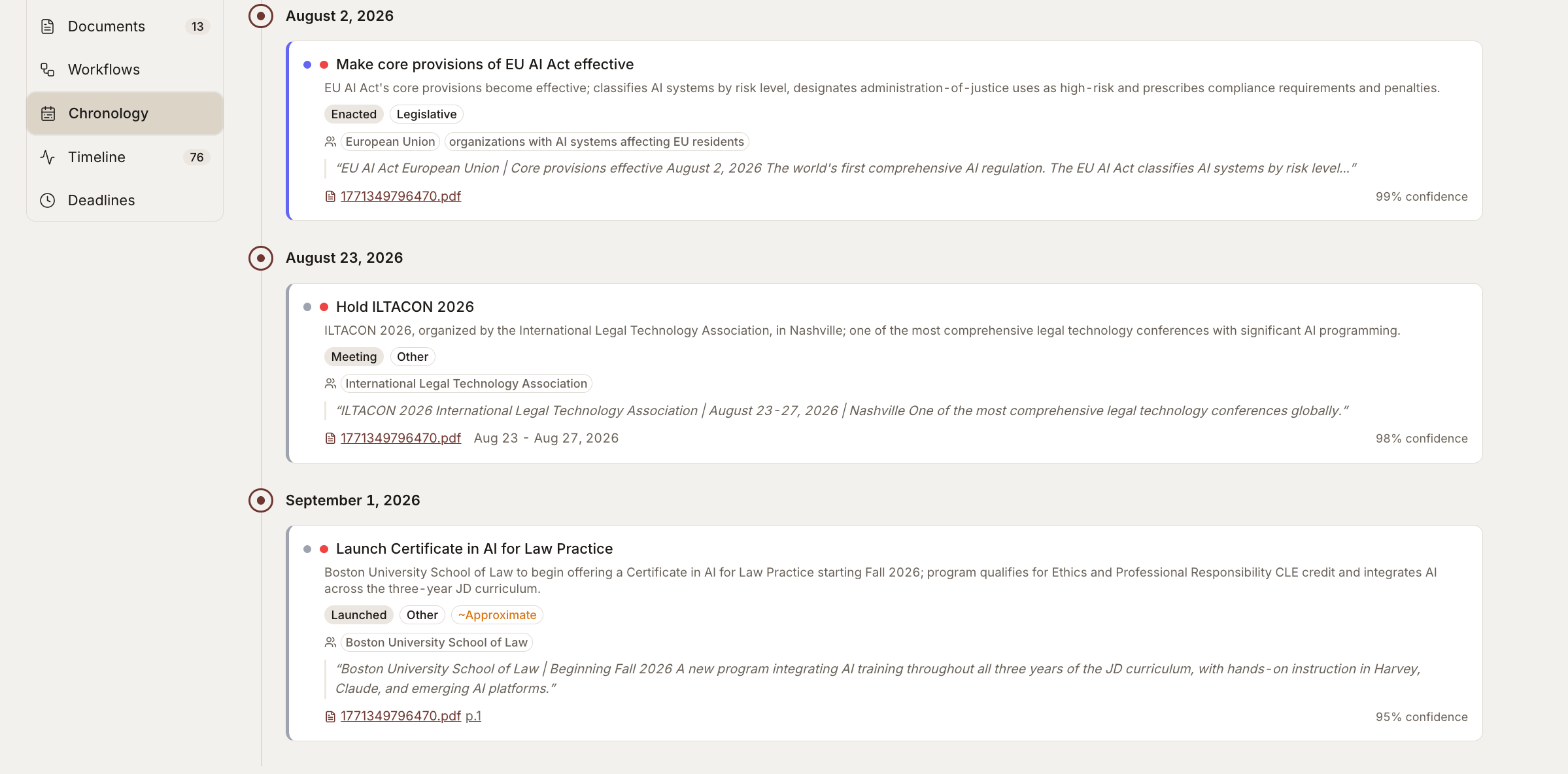
Chronology Builder reads through your documents and pulls out every date, deadline, and event - then organizes them into a single chronological timeline you can hand to a partner, attach to a brief, or work from at trial.
 ## When To Use It
Build the chronological backbone of a motion or trial brief in minutes, with every date sourced.
Lock down the sequence of events before questioning a witness whose account may shift.
Reconstruct a transaction timeline from a folder of emails, contracts, term sheets, and amendments.
Map subpoenas, audit dates, notices of violation, and response deadlines into one timeline.
Trace who knew what and when across a document set during an internal probe.
Walk into a new matter and get the case story fast - the chronology is the partner-level briefing.
## How It Works
Upload to a matter, or pick documents already in the matter.
Launch from the tools menu inside the matter.
The tool extracts every dated event and the surrounding context.
Each event links back to the exact passage in the source document.
Add manual events, correct ambiguous dates, merge duplicates, and tag entries.
Push to Word memo, PDF, or .xlsx with citations preserved.
```mermaid theme={"theme":"github-dark"}
flowchart LR
D1[Email folder] --> E[Date extraction]
D2[Contracts] --> E
D3[Pleadings] --> E
D4[Regulatory notices] --> E
E --> C[Per-event source link]
C --> R[Review and edit]
R --> T[Timeline view]
R --> S[Table view]
T --> X[Word / PDF / xlsx export]
S --> X
```
## What Gets Extracted
| Event Type | Examples |
| ------------------------- | -------------------------------------------------------------------- |
| **Contract dates** | Effective date, term expiration, notice periods, renewal windows |
| **Performance events** | Deliveries, payments, breach notices, cure periods |
| **Communications** | Demand letters, meet-and-confer dates, settlement offers |
| **Litigation milestones** | Filing dates, service of process, discovery deadlines, hearing dates |
| **Regulatory events** | Subpoenas, audit dates, notice of violation, response deadlines |
| **Custom events** | Anything you add manually with your own description |
## Source-Backed Events
Every event in the timeline links back to the exact passage in the source document. Click any event to:
* Open the source document at the page where the event was extracted
* See the highlighted passage that contains the date
* Verify the surrounding context before relying on the entry
If the tool extracts a date you do not need, remove it with one click. If it misses one, add it manually with your own description and source reference.
Ambiguous dates ("March 2024", "Q3 last year", "the following Tuesday") are extracted as best-effort and flagged. Always confirm the precise date before relying on the entry in a brief or deposition outline.
## Views
Vertical timeline with dates on the left and event descriptions on the right. Good for presentations and client memos.
Sortable, filterable spreadsheet. Filter by date range, document, or event type. Good for working drafts and discovery prep.
## Editing the Chronology
* **Add an event** - Insert manual entries that the tool did not extract
* **Edit dates** - Correct ambiguous or partial dates (e.g., "March 2024" can be set to a specific day)
* **Reorder** - Group events that happened on the same day in the order you want
* **Merge** - Combine multiple references to the same event from different documents
* **Tag** - Apply labels like "Disputed", "Privileged", or custom tags for filtering
## Export
| Format | Use Case |
| ----------------------- | --------------------------------------------------------------- |
| **Word (.docx)** | Drop directly into a statement of facts or memo |
| **PDF** | Share with co-counsel or attach to a filing |
| **Spreadsheet (.xlsx)** | Continue working in your own format, or use as an exhibit index |
Each exported chronology preserves the source citations so your team can verify any entry against the underlying document.
## Tips
**Scope by folder or tag.** Run on a specific subset (only emails, only contracts, only pleadings) for a focused timeline instead of one giant blob.
**Combine with Matters.** Each matter has its own chronology; you can also pull a single timeline across every document in the case for a full case story.
**Run iteratively.** Add new documents as discovery comes in and re-run the chronology to see the updated picture - the tool preserves your manual edits across runs.
## Build a chronology
Build a chronology from the documents in \[folder / matter name].
Do these steps:
1. Extract every dated event - contract dates, performance events, communications, litigation milestones, regulatory events.
2. For each event, capture the **date, actor, action, and one-sentence description**.
3. Link each event back to the **exact passage** in the source document (page and section).
4. Flag any dates that are **ambiguous, disputed, or inferred** rather than stated.
5. Group events that occurred on the same day and order them logically by time of day or sequence.
6. Surface a **gap analysis**: identify periods of more than 30 days with no documented activity that may warrant follow-up discovery.
7. Tag events by category: **Contract, Performance, Communication, Litigation, Regulatory, Disputed**.
Return both views: a clean **statement-of-facts narrative** in chronological prose with footnoted citations, and a **table view** (Date / Actor / Event / Source / Tags) for working drafts. Export-ready for Word and .xlsx.
## Related
Scope documents to a single case.
Ask questions across your matter documents.
See how two versions of a document differ.
Turn the same document set into a comparative spreadsheet.
## When To Use It
Build the chronological backbone of a motion or trial brief in minutes, with every date sourced.
Lock down the sequence of events before questioning a witness whose account may shift.
Reconstruct a transaction timeline from a folder of emails, contracts, term sheets, and amendments.
Map subpoenas, audit dates, notices of violation, and response deadlines into one timeline.
Trace who knew what and when across a document set during an internal probe.
Walk into a new matter and get the case story fast - the chronology is the partner-level briefing.
## How It Works
Upload to a matter, or pick documents already in the matter.
Launch from the tools menu inside the matter.
The tool extracts every dated event and the surrounding context.
Each event links back to the exact passage in the source document.
Add manual events, correct ambiguous dates, merge duplicates, and tag entries.
Push to Word memo, PDF, or .xlsx with citations preserved.
```mermaid theme={"theme":"github-dark"}
flowchart LR
D1[Email folder] --> E[Date extraction]
D2[Contracts] --> E
D3[Pleadings] --> E
D4[Regulatory notices] --> E
E --> C[Per-event source link]
C --> R[Review and edit]
R --> T[Timeline view]
R --> S[Table view]
T --> X[Word / PDF / xlsx export]
S --> X
```
## What Gets Extracted
| Event Type | Examples |
| ------------------------- | -------------------------------------------------------------------- |
| **Contract dates** | Effective date, term expiration, notice periods, renewal windows |
| **Performance events** | Deliveries, payments, breach notices, cure periods |
| **Communications** | Demand letters, meet-and-confer dates, settlement offers |
| **Litigation milestones** | Filing dates, service of process, discovery deadlines, hearing dates |
| **Regulatory events** | Subpoenas, audit dates, notice of violation, response deadlines |
| **Custom events** | Anything you add manually with your own description |
## Source-Backed Events
Every event in the timeline links back to the exact passage in the source document. Click any event to:
* Open the source document at the page where the event was extracted
* See the highlighted passage that contains the date
* Verify the surrounding context before relying on the entry
If the tool extracts a date you do not need, remove it with one click. If it misses one, add it manually with your own description and source reference.
Ambiguous dates ("March 2024", "Q3 last year", "the following Tuesday") are extracted as best-effort and flagged. Always confirm the precise date before relying on the entry in a brief or deposition outline.
## Views
Vertical timeline with dates on the left and event descriptions on the right. Good for presentations and client memos.
Sortable, filterable spreadsheet. Filter by date range, document, or event type. Good for working drafts and discovery prep.
## Editing the Chronology
* **Add an event** - Insert manual entries that the tool did not extract
* **Edit dates** - Correct ambiguous or partial dates (e.g., "March 2024" can be set to a specific day)
* **Reorder** - Group events that happened on the same day in the order you want
* **Merge** - Combine multiple references to the same event from different documents
* **Tag** - Apply labels like "Disputed", "Privileged", or custom tags for filtering
## Export
| Format | Use Case |
| ----------------------- | --------------------------------------------------------------- |
| **Word (.docx)** | Drop directly into a statement of facts or memo |
| **PDF** | Share with co-counsel or attach to a filing |
| **Spreadsheet (.xlsx)** | Continue working in your own format, or use as an exhibit index |
Each exported chronology preserves the source citations so your team can verify any entry against the underlying document.
## Tips
**Scope by folder or tag.** Run on a specific subset (only emails, only contracts, only pleadings) for a focused timeline instead of one giant blob.
**Combine with Matters.** Each matter has its own chronology; you can also pull a single timeline across every document in the case for a full case story.
**Run iteratively.** Add new documents as discovery comes in and re-run the chronology to see the updated picture - the tool preserves your manual edits across runs.
## Build a chronology
Build a chronology from the documents in \[folder / matter name].
Do these steps:
1. Extract every dated event - contract dates, performance events, communications, litigation milestones, regulatory events.
2. For each event, capture the **date, actor, action, and one-sentence description**.
3. Link each event back to the **exact passage** in the source document (page and section).
4. Flag any dates that are **ambiguous, disputed, or inferred** rather than stated.
5. Group events that occurred on the same day and order them logically by time of day or sequence.
6. Surface a **gap analysis**: identify periods of more than 30 days with no documented activity that may warrant follow-up discovery.
7. Tag events by category: **Contract, Performance, Communication, Litigation, Regulatory, Disputed**.
Return both views: a clean **statement-of-facts narrative** in chronological prose with footnoted citations, and a **table view** (Date / Actor / Event / Source / Tags) for working drafts. Export-ready for Word and .xlsx.
## Related
Scope documents to a single case.
Ask questions across your matter documents.
See how two versions of a document differ.
Turn the same document set into a comparative spreadsheet.