> ## Documentation Index
> Fetch the complete documentation index at: https://vaquill.ai/docs/llms.txt
> Use this file to discover all available pages before exploring further.
# Documents
> Your central library: tag, filter by matter, organize into folders, and run bulk actions on every file
The document library, labelled **Vault** in the sidebar, is where every file you upload lives. Each document is tagged by type, searchable, filterable by matter, and organized into folders.
Select one or many and run bulk actions: chat, tag, move, copy, preview, or delete. It is the workspace that ties uploads to the matters they belong to.
 ## The library
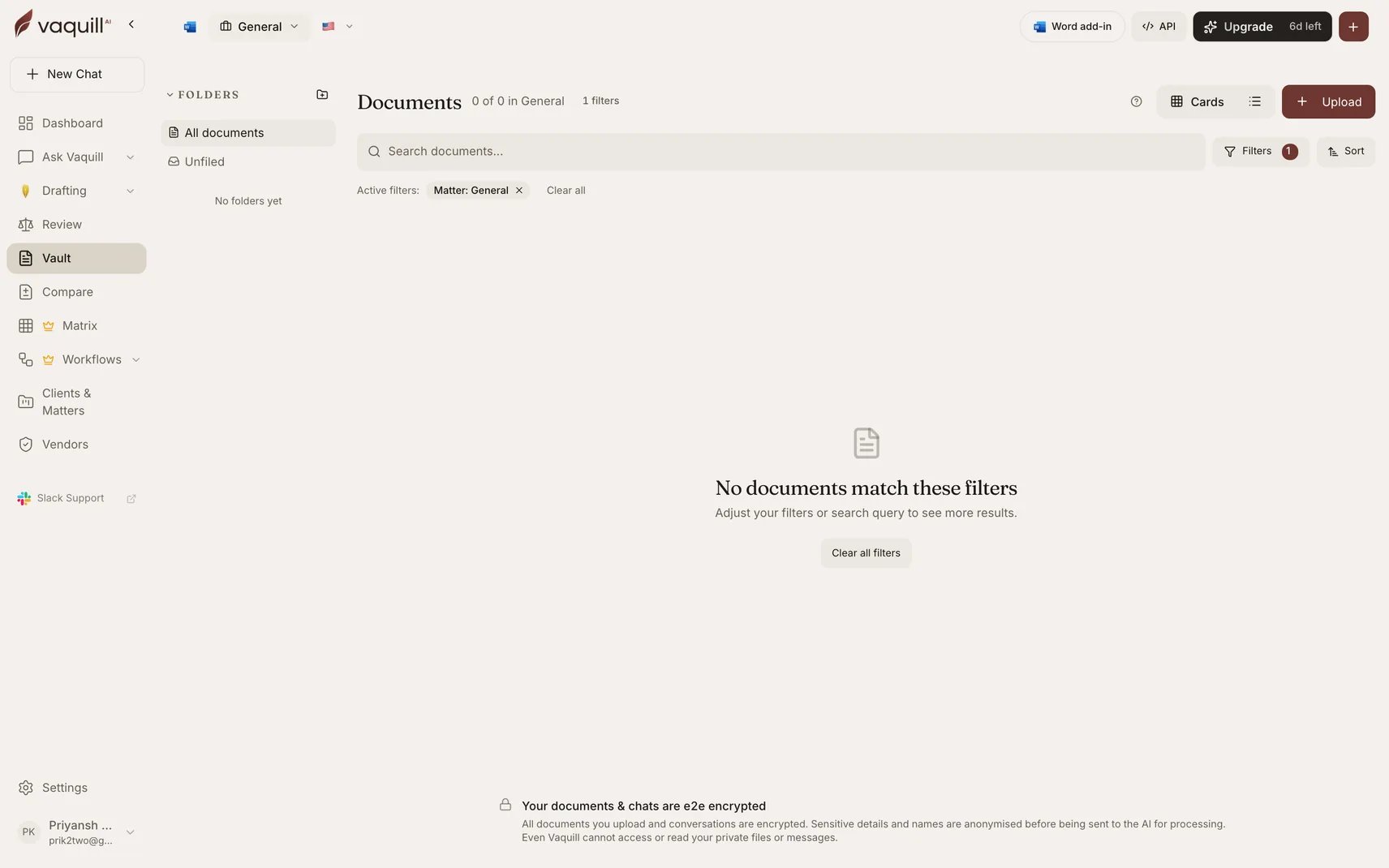
Documents appear as cards (or as a list, your choice via the **Cards / list** toggle). Each card shows the file name and a type tag so you can scan a folder at a glance.
Per-card actions let you **Preview** a file or jump straight into **Chat** with it. Upload new files from the top of the page; they land in the library and are ready to tag, file, and search.
## Tagging
Every document carries a type tag that classifies it:
Agreements, NDAs, MSAs, leases, and other executed or draft contracts.
Court opinions, orders, and judgments.
Articles, memos, and reference material.
Anything that does not fit the above.
Tags are not fixed at upload. Select one or more documents and use **Add Tags** to classify them yourself, so you can keep a mixed folder organized by type.
## Filter by matter
Use the matter filter to scope the library to a single matter (for example, *Matter: Priyansh vs Experiment*). The header shows the active filter and a count of matching documents, and **Clear all** drops the filter to see everything again. Combine the filter with the search box to find a specific file inside a busy matter.
## Folders
Folders give you a second axis of organization alongside matters. File documents into folders to group them however your practice works (by client, by deal stage, by document type) and switch folders from the sidebar. A document can live in a folder and still belong to a matter, so the two systems stack rather than compete.
## Bulk actions
Select multiple documents (or use **Select All**) to act on them at once. The bulk-action bar exposes:
Open a conversation grounded in every selected document.
Apply a type tag to the whole selection.
Reassign the selection to a different matter.
File the selection into a folder.
Place a copy in another matter without removing the original.
Open the selected file to read it inline.
Remove the selection from the library.
Drop the current selection and exit bulk mode.
## Chat with documents
**Chat** turns any selection into a sourced conversation. Pick one document for a focused read, or several to ask across a set, then ask questions in plain language and get answers cited back to the source. Single-document chat is the fast way to interrogate one file; multi-document chat is the way to ask one question across a folder.
Chatting across a tightly scoped selection (say, the five contracts in one matter) gives sharper answers than chatting across the whole library. Filter and select first, then chat.
## Preview
**Preview** opens a document in place so you can read it without leaving the library or downloading it. Use it to confirm you have the right file before you tag it, move it, or pull it into a chat.
## Moving and copying to matters
Documents and matters are linked but not locked together:
Tick the cards you want to act on, or use Select All.
Use **Move to Matter** to reassign the files, or **Copy to Matter** to leave the originals in place and drop a copy elsewhere.
The files appear under the target matter, ready for review, chat, or a workflow run.
**Move** relocates a document, **Copy** duplicates it. Use Copy when the same file is relevant to two matters and you do not want a change in one to affect the other.
## Related
Ask questions across your documents and get cited answers.
Organize documents, chats, and drafts around a single matter.
Full list of supported upload formats and OCR behavior.
## The library
Documents appear as cards (or as a list, your choice via the **Cards / list** toggle). Each card shows the file name and a type tag so you can scan a folder at a glance.
Per-card actions let you **Preview** a file or jump straight into **Chat** with it. Upload new files from the top of the page; they land in the library and are ready to tag, file, and search.
## Tagging
Every document carries a type tag that classifies it:
Agreements, NDAs, MSAs, leases, and other executed or draft contracts.
Court opinions, orders, and judgments.
Articles, memos, and reference material.
Anything that does not fit the above.
Tags are not fixed at upload. Select one or more documents and use **Add Tags** to classify them yourself, so you can keep a mixed folder organized by type.
## Filter by matter
Use the matter filter to scope the library to a single matter (for example, *Matter: Priyansh vs Experiment*). The header shows the active filter and a count of matching documents, and **Clear all** drops the filter to see everything again. Combine the filter with the search box to find a specific file inside a busy matter.
## Folders
Folders give you a second axis of organization alongside matters. File documents into folders to group them however your practice works (by client, by deal stage, by document type) and switch folders from the sidebar. A document can live in a folder and still belong to a matter, so the two systems stack rather than compete.
## Bulk actions
Select multiple documents (or use **Select All**) to act on them at once. The bulk-action bar exposes:
Open a conversation grounded in every selected document.
Apply a type tag to the whole selection.
Reassign the selection to a different matter.
File the selection into a folder.
Place a copy in another matter without removing the original.
Open the selected file to read it inline.
Remove the selection from the library.
Drop the current selection and exit bulk mode.
## Chat with documents
**Chat** turns any selection into a sourced conversation. Pick one document for a focused read, or several to ask across a set, then ask questions in plain language and get answers cited back to the source. Single-document chat is the fast way to interrogate one file; multi-document chat is the way to ask one question across a folder.
Chatting across a tightly scoped selection (say, the five contracts in one matter) gives sharper answers than chatting across the whole library. Filter and select first, then chat.
## Preview
**Preview** opens a document in place so you can read it without leaving the library or downloading it. Use it to confirm you have the right file before you tag it, move it, or pull it into a chat.
## Moving and copying to matters
Documents and matters are linked but not locked together:
Tick the cards you want to act on, or use Select All.
Use **Move to Matter** to reassign the files, or **Copy to Matter** to leave the originals in place and drop a copy elsewhere.
The files appear under the target matter, ready for review, chat, or a workflow run.
**Move** relocates a document, **Copy** duplicates it. Use Copy when the same file is relevant to two matters and you do not want a change in one to affect the other.
## Related
Ask questions across your documents and get cited answers.
Organize documents, chats, and drafts around a single matter.
Full list of supported upload formats and OCR behavior.