> ## Documentation Index
> Fetch the complete documentation index at: https://vaquill.ai/docs/llms.txt
> Use this file to discover all available pages before exploring further.
# Email Ingestion
> Forward emails to your matter and have them - and their attachments - automatically ingested and searchable
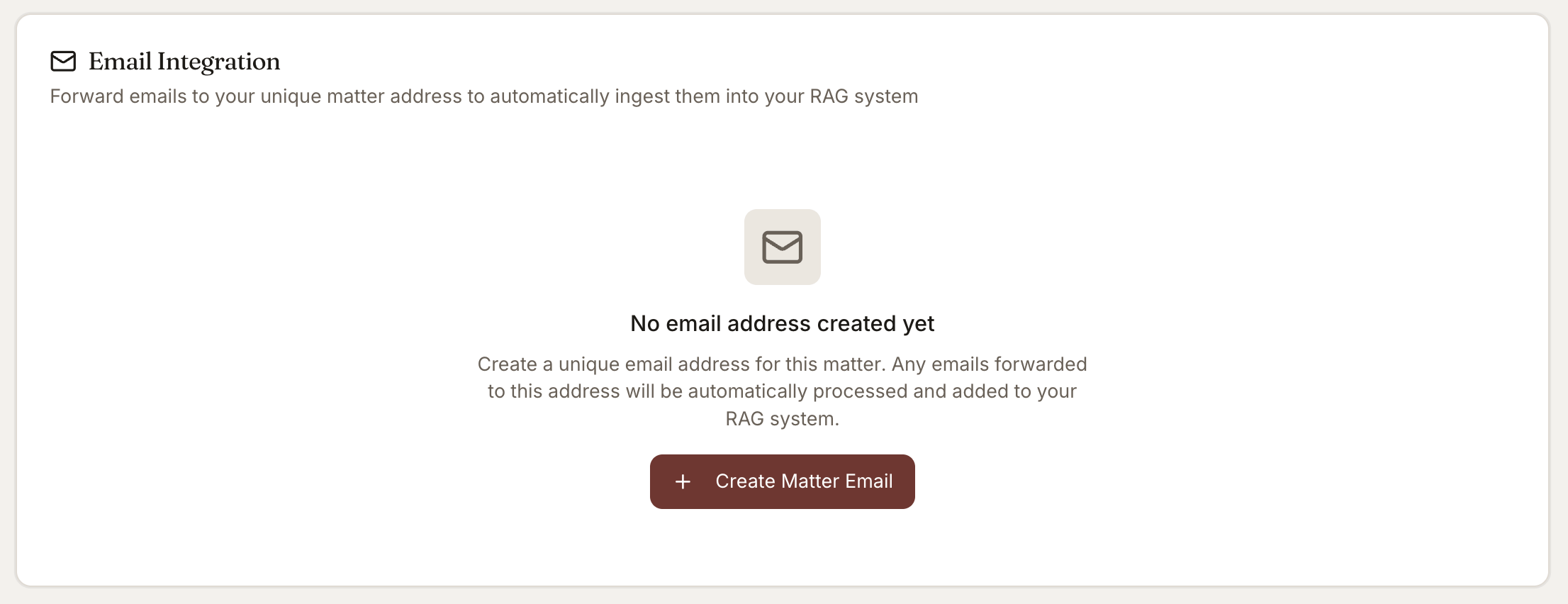
Every matter gets a unique email address. Forward any email to it - a client's message, a vendor inquiry, a counterparty's response, a regulatory notice - and the email plus its attachments are automatically ingested, indexed, and searchable across the matter.
 ## When To Use It
* Pulling email correspondence into the matter file without manual upload
* Capturing incoming requests (data subject requests, subpoena receipts, vendor inquiries) for analysis
* Building a complete matter record that includes the email thread, not just the documents
* Letting a paralegal forward case-relevant emails without giving them upload access to every matter
* Aggregating documents from multiple email threads into a single searchable matter
## Setting Up Email Forwarding
Open the matter in your [dashboard](https://app.vaquill.ai) and go to **Settings -> Email Ingestion**.
Copy the unique address (something like `matter-abc123@ingest.vaquill.ai`). Save it to your address book so forwarding is one click.
From your email client, forward (or BCC) a message to the matter address.
Within a minute or two, the message and any attachments appear in the matter document list, ready to chat with.
## Each Matter Has Its Own Address
When you create a matter, the system generates a unique email address for it - something like `matter-abc123@ingest.vaquill.ai`. This address only ingests into that specific matter; emails to one matter's address cannot end up in another matter.
You can find the matter's email address on the matter settings page. Copy it to your address book so it is one click to forward.
Treat the matter email address as confidential. Anyone who can send mail to it and is on the authorized sender list can drop documents into the matter. Do not paste it into public channels or out-of-office replies.
## What Gets Ingested
When you forward an email to the matter address:
| Item | How It's Handled |
| ------------------------ | ------------------------------------------------------------------------ |
| **The email body** | Ingested as a searchable document, dated by send time |
| **Attachments** | Each attachment ingested as a separate searchable document |
| **Sender and recipient** | Captured as metadata |
| **Subject line** | Captured as document title |
| **Date** | Used for chronology and timeline features |
| **Thread context** | If multiple emails in the thread are forwarded, they are linked together |
## Sender Verification
Only emails from authorized senders are ingested:
* The matter creator and matter members
* Email addresses on the matter's authorized list
* Any address you add manually to the allow list
Emails from unauthorized senders are quarantined and visible in the matter settings - you can review and approve them individually, or add the sender to the allow list.
Quarantine is a privacy safeguard, not a spam filter. Anything sitting in quarantine is still visible to people with access to the matter settings. Approve or delete quarantined messages promptly so privileged data is not parked in a holding area.
## Multiple Ways To Forward
* **Forward** - Standard forward; the original message becomes a new document in the matter
* **BCC the matter address** - Original recipients do not see the address; useful for outgoing client communications
* **Reply-to-ingest** - When you receive an email related to a matter, reply with the matter address as the only recipient to capture just the reply
## Attachment Processing
Attachments go through the standard ingestion pipeline:
* All [supported file formats](/docs/guides/file-formats) are processed
* OCR runs on image-based attachments
* Archive files (ZIP, TAR) are extracted and each file ingested separately
* Each attachment is available for any analysis tool
If an attachment fails to process (corrupted, password-protected, oversized), the system logs the failure and notifies you on the matter document list.
## Use Cases
### Client Intake
Forward the client's intake email and all initial documents to the new matter. The matter starts pre-populated with the relevant context.
### Discovery Production
Receive a discovery production by email and forward to the matter. The production documents are ingested individually and searchable, with the original cover email preserved for the chain of custody.
### Vendor Inquiries
Forward incoming vendor compliance questionnaires to the matter address. The inquiry plus any attached drafts become part of the matter; run [Canned Responses](/docs/guides/tools/canned-responses) on the ingested email to generate a reply.
### Regulatory Notices
Forward regulatory correspondence (subpoenas, audit notices, breach notifications) to the matter for analysis. Pair with the [Statutes & Regulations](/docs/guides/statutes-regulations) lookup to understand the obligations.
## Tips
**Add the matter address to your contacts.** Forwarding becomes a one-click action and you stop mistyping the address.
**Use BCC for outgoing email.** It captures your own correspondence to the matter without changing what the recipient sees.
**Set up a rule in your email client.** For client matters with high email volume, an auto-forward rule keyed to the client's domain keeps the matter file complete without manual work.
**Forward inbound subpoenas and regulatory notices.** Pair with the [Statutes & Regulations](/docs/guides/statutes-regulations) lookup to draft a response with the obligations already on the page.
## Related
The matter that owns the email address.
How attachments are processed.
Pull documents from Google Drive instead of email.
## When To Use It
* Pulling email correspondence into the matter file without manual upload
* Capturing incoming requests (data subject requests, subpoena receipts, vendor inquiries) for analysis
* Building a complete matter record that includes the email thread, not just the documents
* Letting a paralegal forward case-relevant emails without giving them upload access to every matter
* Aggregating documents from multiple email threads into a single searchable matter
## Setting Up Email Forwarding
Open the matter in your [dashboard](https://app.vaquill.ai) and go to **Settings -> Email Ingestion**.
Copy the unique address (something like `matter-abc123@ingest.vaquill.ai`). Save it to your address book so forwarding is one click.
From your email client, forward (or BCC) a message to the matter address.
Within a minute or two, the message and any attachments appear in the matter document list, ready to chat with.
## Each Matter Has Its Own Address
When you create a matter, the system generates a unique email address for it - something like `matter-abc123@ingest.vaquill.ai`. This address only ingests into that specific matter; emails to one matter's address cannot end up in another matter.
You can find the matter's email address on the matter settings page. Copy it to your address book so it is one click to forward.
Treat the matter email address as confidential. Anyone who can send mail to it and is on the authorized sender list can drop documents into the matter. Do not paste it into public channels or out-of-office replies.
## What Gets Ingested
When you forward an email to the matter address:
| Item | How It's Handled |
| ------------------------ | ------------------------------------------------------------------------ |
| **The email body** | Ingested as a searchable document, dated by send time |
| **Attachments** | Each attachment ingested as a separate searchable document |
| **Sender and recipient** | Captured as metadata |
| **Subject line** | Captured as document title |
| **Date** | Used for chronology and timeline features |
| **Thread context** | If multiple emails in the thread are forwarded, they are linked together |
## Sender Verification
Only emails from authorized senders are ingested:
* The matter creator and matter members
* Email addresses on the matter's authorized list
* Any address you add manually to the allow list
Emails from unauthorized senders are quarantined and visible in the matter settings - you can review and approve them individually, or add the sender to the allow list.
Quarantine is a privacy safeguard, not a spam filter. Anything sitting in quarantine is still visible to people with access to the matter settings. Approve or delete quarantined messages promptly so privileged data is not parked in a holding area.
## Multiple Ways To Forward
* **Forward** - Standard forward; the original message becomes a new document in the matter
* **BCC the matter address** - Original recipients do not see the address; useful for outgoing client communications
* **Reply-to-ingest** - When you receive an email related to a matter, reply with the matter address as the only recipient to capture just the reply
## Attachment Processing
Attachments go through the standard ingestion pipeline:
* All [supported file formats](/docs/guides/file-formats) are processed
* OCR runs on image-based attachments
* Archive files (ZIP, TAR) are extracted and each file ingested separately
* Each attachment is available for any analysis tool
If an attachment fails to process (corrupted, password-protected, oversized), the system logs the failure and notifies you on the matter document list.
## Use Cases
### Client Intake
Forward the client's intake email and all initial documents to the new matter. The matter starts pre-populated with the relevant context.
### Discovery Production
Receive a discovery production by email and forward to the matter. The production documents are ingested individually and searchable, with the original cover email preserved for the chain of custody.
### Vendor Inquiries
Forward incoming vendor compliance questionnaires to the matter address. The inquiry plus any attached drafts become part of the matter; run [Canned Responses](/docs/guides/tools/canned-responses) on the ingested email to generate a reply.
### Regulatory Notices
Forward regulatory correspondence (subpoenas, audit notices, breach notifications) to the matter for analysis. Pair with the [Statutes & Regulations](/docs/guides/statutes-regulations) lookup to understand the obligations.
## Tips
**Add the matter address to your contacts.** Forwarding becomes a one-click action and you stop mistyping the address.
**Use BCC for outgoing email.** It captures your own correspondence to the matter without changing what the recipient sees.
**Set up a rule in your email client.** For client matters with high email volume, an auto-forward rule keyed to the client's domain keeps the matter file complete without manual work.
**Forward inbound subpoenas and regulatory notices.** Pair with the [Statutes & Regulations](/docs/guides/statutes-regulations) lookup to draft a response with the obligations already on the page.
## Related
The matter that owns the email address.
How attachments are processed.
Pull documents from Google Drive instead of email.