> ## Documentation Index
> Fetch the complete documentation index at: https://vaquill.ai/docs/llms.txt
> Use this file to discover all available pages before exploring further.
# Supported File Formats
> Reference list of file formats Vaquill can ingest and search, with notes on OCR and special handling
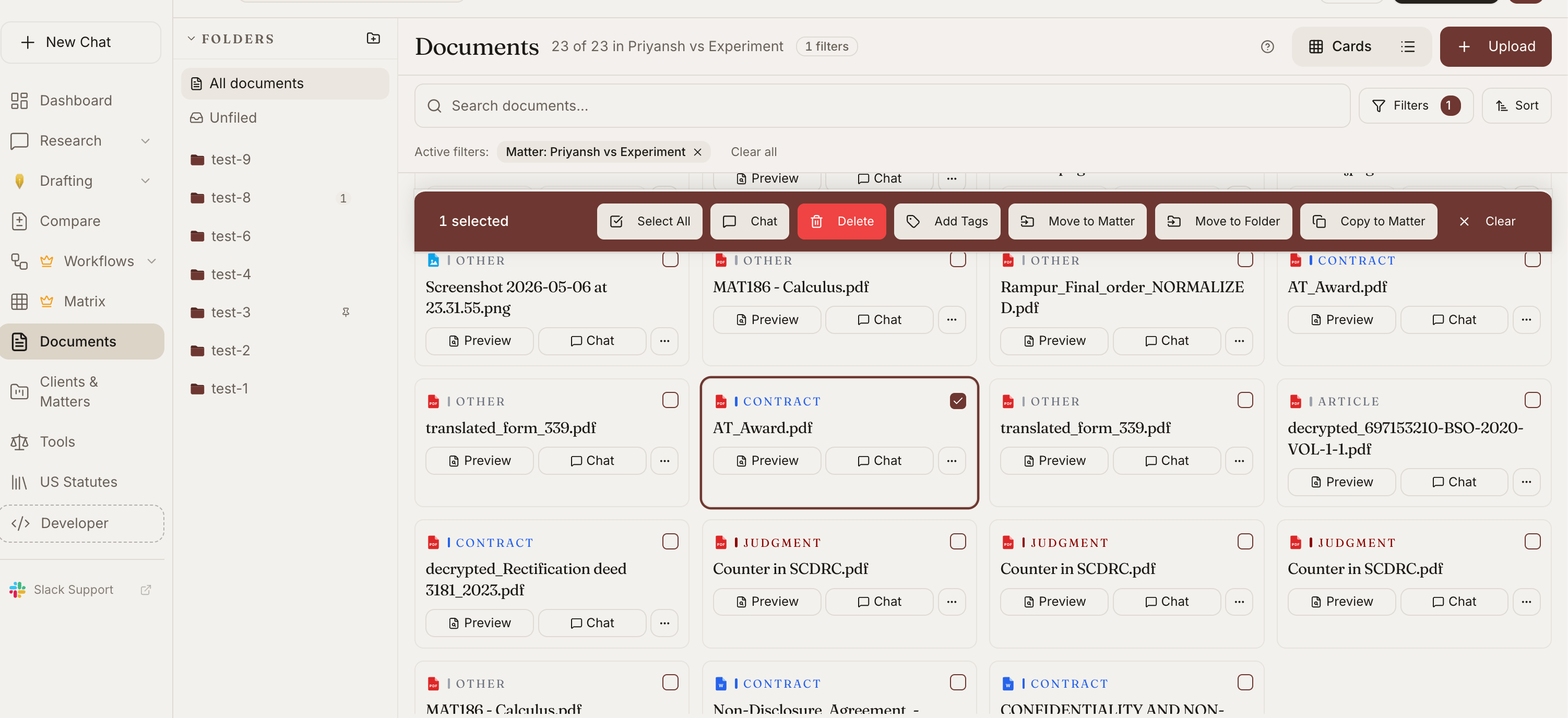
Vaquill ingests over 50 file formats - the ones that show up in real legal practice. Upload them as-is; the system extracts text, runs OCR where needed, and makes the content searchable across your matter.
 | Format | Notes |
| ------------- | ------------------------------------------------------------------- |
| **PDF** | Native and image-only; OCR runs automatically on scanned pages |
| **DOCX** | Modern Word format; preserves headings and tracked changes metadata |
| **DOCM** | Macro-enabled Word; macros are ignored, text is extracted |
| **DOC** | Legacy Word; converted before extraction |
| **DOT, DOTX** | Word templates |
| **RTF** | Rich Text Format |
| **TXT** | Plain text |
| **MD** | Markdown |
| **HTML, HTM** | Web pages and HTML exports |
| Format | Notes |
| ------------------- | --------------------------------- |
| **XLSX** | Modern Excel; all sheets ingested |
| **XLSM** | Macro-enabled Excel |
| **XLS** | Legacy Excel |
| **XLTX, XLTM, XLT** | Excel templates |
| **CSV** | Tabular data |
| Format | Notes |
| ------------- | -------------------------------------------------- |
| **PPTX** | Modern PowerPoint; slide content and speaker notes |
| **PPTM** | Macro-enabled PowerPoint |
| **PPT** | Legacy PowerPoint |
| **POT, POTX** | PowerPoint templates |
| Format | Notes |
| ------------- | --------------------------- |
| **PNG** | OCR runs automatically |
| **JPG, JPEG** | OCR runs automatically |
| **GIF** | OCR runs on the first frame |
| **WebP** | OCR runs automatically |
| **TIFF, TIF** | Multi-page TIFFs supported |
| **BMP** | OCR runs automatically |
| **SVG** | Text elements extracted |
| Format | Notes |
| -------- | ------------------------------------------------------ |
| **EML** | Single message export; attachments ingested separately |
| **MSG** | Outlook message format |
| **MBOX** | Mailbox archive; all messages ingested |
| **PST** | Outlook archive; all folders ingested |
Attachments within email files are extracted and ingested as separate searchable documents, with a link back to the parent message.
| Format | Notes |
| ----------------------------------- | -------------------------------------------------------- |
| **PY, JS, TS, JAVA, CPP, GO, RUST** | Source code files; useful for IP and code-review matters |
| **JSON, XML** | Structured data |
| Format | Notes |
| --------------- | ------------------------------ |
| **ZIP** | Contents extracted recursively |
| **TAR, TAR.GZ** | Contents extracted recursively |
| **RAR** | Contents extracted recursively |
| **7Z** | Contents extracted recursively |
When you upload an archive, the system extracts and ingests each file inside as a separate searchable document. Folder structure is preserved.
Password-protected files (encrypted PDFs, password-locked archives, protected Office files) cannot be processed automatically. Remove the password before upload, or supply the password via the per-file ingestion options.
## OCR for Scanned Documents
For image-based files and scanned PDFs:
* OCR runs automatically on upload
* The resulting text is searchable like any other document
* The original image is preserved; click any citation to see the highlighted passage on the page
* Handwritten content is recognized where legible
* Common OCR artifacts (broken hyphens, mis-recognized characters) are cleaned up automatically
## Size and Page Limits
Upload limits vary by plan - see your [dashboard](https://app.vaquill.ai/settings) for current per-plan caps on file size, page count, and batch size. For very large files or batches, contact support to discuss enterprise ingestion options.
## What Happens After Upload
The file is scanned for safety. No untrusted code is executed.
Text is extracted; OCR runs on image-based content.
The document is indexed for search across your matter.
Citations within the document are detected and linked to authorities.
The document is available for analysis in any tool.
Upload progress and processing status are visible in the matter document list.
## Tips
**Group with archives.** Upload a ZIP of all documents in a discovery production to preserve folder structure.
**Email-to-matter.** Forward EML or MSG files to the matter's unique email address for automatic ingestion (see [Email Ingestion](/docs/guides/email-to-rag)).
**Re-OCR if needed.** If the OCR quality is poor on a scanned document, you can request a re-OCR pass with stricter settings.
## Related
Search across everything you have uploaded.
Forward emails to ingest documents and attachments.
Pull documents directly from Google Drive.
| Format | Notes |
| ------------- | ------------------------------------------------------------------- |
| **PDF** | Native and image-only; OCR runs automatically on scanned pages |
| **DOCX** | Modern Word format; preserves headings and tracked changes metadata |
| **DOCM** | Macro-enabled Word; macros are ignored, text is extracted |
| **DOC** | Legacy Word; converted before extraction |
| **DOT, DOTX** | Word templates |
| **RTF** | Rich Text Format |
| **TXT** | Plain text |
| **MD** | Markdown |
| **HTML, HTM** | Web pages and HTML exports |
| Format | Notes |
| ------------------- | --------------------------------- |
| **XLSX** | Modern Excel; all sheets ingested |
| **XLSM** | Macro-enabled Excel |
| **XLS** | Legacy Excel |
| **XLTX, XLTM, XLT** | Excel templates |
| **CSV** | Tabular data |
| Format | Notes |
| ------------- | -------------------------------------------------- |
| **PPTX** | Modern PowerPoint; slide content and speaker notes |
| **PPTM** | Macro-enabled PowerPoint |
| **PPT** | Legacy PowerPoint |
| **POT, POTX** | PowerPoint templates |
| Format | Notes |
| ------------- | --------------------------- |
| **PNG** | OCR runs automatically |
| **JPG, JPEG** | OCR runs automatically |
| **GIF** | OCR runs on the first frame |
| **WebP** | OCR runs automatically |
| **TIFF, TIF** | Multi-page TIFFs supported |
| **BMP** | OCR runs automatically |
| **SVG** | Text elements extracted |
| Format | Notes |
| -------- | ------------------------------------------------------ |
| **EML** | Single message export; attachments ingested separately |
| **MSG** | Outlook message format |
| **MBOX** | Mailbox archive; all messages ingested |
| **PST** | Outlook archive; all folders ingested |
Attachments within email files are extracted and ingested as separate searchable documents, with a link back to the parent message.
| Format | Notes |
| ----------------------------------- | -------------------------------------------------------- |
| **PY, JS, TS, JAVA, CPP, GO, RUST** | Source code files; useful for IP and code-review matters |
| **JSON, XML** | Structured data |
| Format | Notes |
| --------------- | ------------------------------ |
| **ZIP** | Contents extracted recursively |
| **TAR, TAR.GZ** | Contents extracted recursively |
| **RAR** | Contents extracted recursively |
| **7Z** | Contents extracted recursively |
When you upload an archive, the system extracts and ingests each file inside as a separate searchable document. Folder structure is preserved.
Password-protected files (encrypted PDFs, password-locked archives, protected Office files) cannot be processed automatically. Remove the password before upload, or supply the password via the per-file ingestion options.
## OCR for Scanned Documents
For image-based files and scanned PDFs:
* OCR runs automatically on upload
* The resulting text is searchable like any other document
* The original image is preserved; click any citation to see the highlighted passage on the page
* Handwritten content is recognized where legible
* Common OCR artifacts (broken hyphens, mis-recognized characters) are cleaned up automatically
## Size and Page Limits
Upload limits vary by plan - see your [dashboard](https://app.vaquill.ai/settings) for current per-plan caps on file size, page count, and batch size. For very large files or batches, contact support to discuss enterprise ingestion options.
## What Happens After Upload
The file is scanned for safety. No untrusted code is executed.
Text is extracted; OCR runs on image-based content.
The document is indexed for search across your matter.
Citations within the document are detected and linked to authorities.
The document is available for analysis in any tool.
Upload progress and processing status are visible in the matter document list.
## Tips
**Group with archives.** Upload a ZIP of all documents in a discovery production to preserve folder structure.
**Email-to-matter.** Forward EML or MSG files to the matter's unique email address for automatic ingestion (see [Email Ingestion](/docs/guides/email-to-rag)).
**Re-OCR if needed.** If the OCR quality is poor on a scanned document, you can request a re-OCR pass with stricter settings.
## Related
Search across everything you have uploaded.
Forward emails to ingest documents and attachments.
Pull documents directly from Google Drive.