> ## Documentation Index
> Fetch the complete documentation index at: https://vaquill.ai/docs/llms.txt
> Use this file to discover all available pages before exploring further.
# Drive Import
> Connect your Google Drive and import documents directly into a matter without downloading and re-uploading
Drive Import connects Vaquill to your Google Drive so you can pull documents directly into a matter - no download-and-reupload, no version drift between Drive and the matter. Useful when client documents live in shared Drive folders or when you keep your firm's templates and working files in Drive.
 ## When To Use It
* Pulling client documents from a shared Drive folder
* Importing firm templates and reusing them in a matter
* Working with a co-counsel team that organizes documents in Drive
* Maintaining one source of truth: documents live in Drive, but are searchable in Vaquill
* Avoiding the friction of download-and-reupload cycles
## Connecting Drive
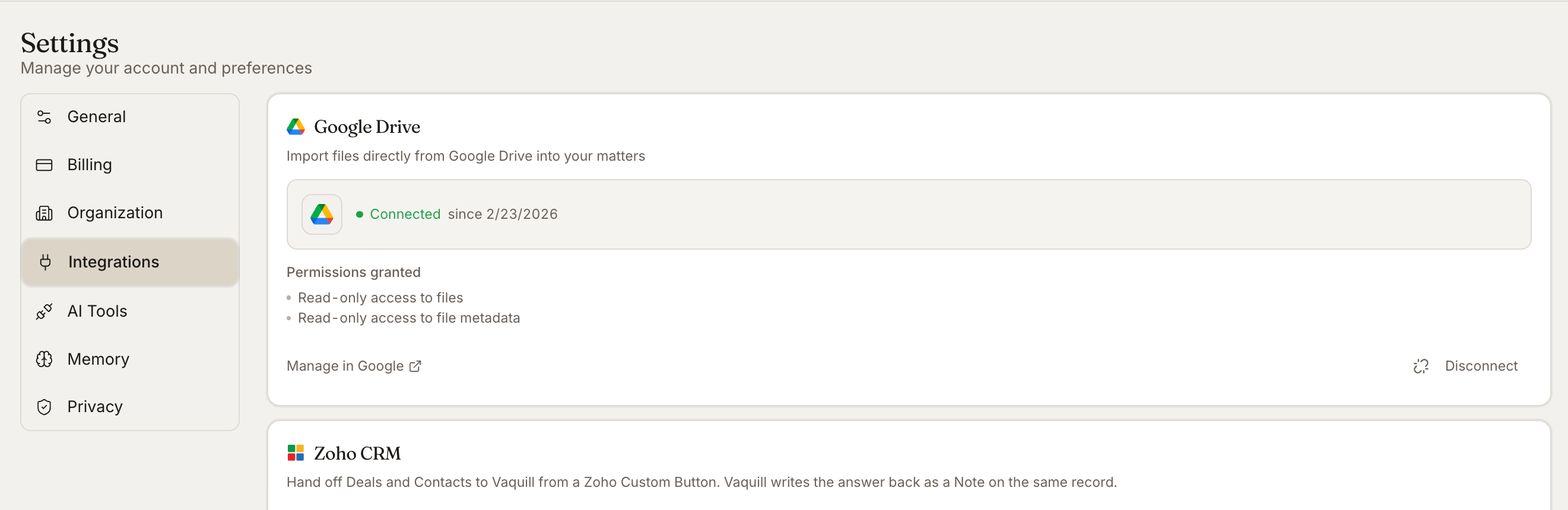
Go to **Settings -> Integrations** in your [dashboard](https://app.vaquill.ai).
Click **Connect** on the Google Drive card.
Authorize Vaquill to access your Drive in the Google consent screen.
Choose whether Vaquill can see your entire Drive or only a specific folder.
You can connect a personal Drive or a Workspace Drive. For firm-wide use, an administrator connects the firm's Drive and members can import from it.
## Authorization Scope
Vaquill only reads the documents you choose to import - it does not browse your full Drive automatically. When you import a file, the system:
* Reads the file content
* Captures the file metadata (name, last modified, owner)
* Stores a reference linking back to the original Drive file
You can revoke the integration at any time from Settings -> Integrations or from your Google Account permissions.
Google's OAuth consent screen lists the scopes Vaquill is requesting. If you grant access to your entire Drive, any member who can import in your organization may see file names and metadata for files they pick. Pick a specific folder if you want a tighter blast radius.
## How To Import
### One-Off Import
Open the matter and click **Add Documents -> Import from Drive**.
Browse your Drive folder structure in the picker.
Select files or entire folders.
Click **Import**. The files are ingested into the matter and become searchable like any other document.
### Folder Sync
For folders that update over time, set up a sync between a Drive folder and a matter. New files added to the Drive folder are ingested into the matter on the next sync. Files removed from the Drive folder stay in the matter unless you choose to remove them.
### Specific Files Only
For sensitive matters where you want explicit control:
* Connect Drive without sync
* Import files one at a time via the picker
* Nothing is automatic - each file is a deliberate choice
## Version Handling
If a file in Drive is updated after import:
* The matter retains the version that was imported (point-in-time snapshot)
* The original Drive file is unchanged
* You can re-import to pull the latest version - this adds a new document version in the matter while keeping the original
This is important for matter file integrity: the version you analyzed is the version preserved.
## Folder Structure
When you import a folder, the Drive folder structure is preserved as tags or as nested folders in the matter, depending on your matter's organization settings.
## Permissions
* Documents imported from Drive inherit the matter's access controls, not the original Drive permissions
* Once imported, only matter members can see the document, regardless of Drive sharing settings
* If you remove a member from the matter, they lose access to the imported documents even if they retain access to the original Drive files
Imported documents live as a snapshot inside the matter. If the source file is later restricted or deleted in Drive, the matter copy still exists. Audit imported documents before closing a matter if Drive access changes are part of your retention policy.
## Tips
**Use folder sync for active matters.** When a client drops a new document into the shared folder, you have it in the matter without manual import.
**Use one-off import for sensitive matters.** It avoids accidental ingestion of unrelated documents that happen to live in the same folder.
**Keep originals in Drive.** The matter copy is for analysis and search; the Drive original remains the editable working copy.
**Disconnect when done.** For closed matters, you can disconnect Drive integration while keeping the imported documents.
## Related
All formats are supported via Drive Import.
Alternative ingestion path via email forwarding.
The matter destination for imported documents.
## When To Use It
* Pulling client documents from a shared Drive folder
* Importing firm templates and reusing them in a matter
* Working with a co-counsel team that organizes documents in Drive
* Maintaining one source of truth: documents live in Drive, but are searchable in Vaquill
* Avoiding the friction of download-and-reupload cycles
## Connecting Drive
Go to **Settings -> Integrations** in your [dashboard](https://app.vaquill.ai).
Click **Connect** on the Google Drive card.
Authorize Vaquill to access your Drive in the Google consent screen.
Choose whether Vaquill can see your entire Drive or only a specific folder.
You can connect a personal Drive or a Workspace Drive. For firm-wide use, an administrator connects the firm's Drive and members can import from it.
## Authorization Scope
Vaquill only reads the documents you choose to import - it does not browse your full Drive automatically. When you import a file, the system:
* Reads the file content
* Captures the file metadata (name, last modified, owner)
* Stores a reference linking back to the original Drive file
You can revoke the integration at any time from Settings -> Integrations or from your Google Account permissions.
Google's OAuth consent screen lists the scopes Vaquill is requesting. If you grant access to your entire Drive, any member who can import in your organization may see file names and metadata for files they pick. Pick a specific folder if you want a tighter blast radius.
## How To Import
### One-Off Import
Open the matter and click **Add Documents -> Import from Drive**.
Browse your Drive folder structure in the picker.
Select files or entire folders.
Click **Import**. The files are ingested into the matter and become searchable like any other document.
### Folder Sync
For folders that update over time, set up a sync between a Drive folder and a matter. New files added to the Drive folder are ingested into the matter on the next sync. Files removed from the Drive folder stay in the matter unless you choose to remove them.
### Specific Files Only
For sensitive matters where you want explicit control:
* Connect Drive without sync
* Import files one at a time via the picker
* Nothing is automatic - each file is a deliberate choice
## Version Handling
If a file in Drive is updated after import:
* The matter retains the version that was imported (point-in-time snapshot)
* The original Drive file is unchanged
* You can re-import to pull the latest version - this adds a new document version in the matter while keeping the original
This is important for matter file integrity: the version you analyzed is the version preserved.
## Folder Structure
When you import a folder, the Drive folder structure is preserved as tags or as nested folders in the matter, depending on your matter's organization settings.
## Permissions
* Documents imported from Drive inherit the matter's access controls, not the original Drive permissions
* Once imported, only matter members can see the document, regardless of Drive sharing settings
* If you remove a member from the matter, they lose access to the imported documents even if they retain access to the original Drive files
Imported documents live as a snapshot inside the matter. If the source file is later restricted or deleted in Drive, the matter copy still exists. Audit imported documents before closing a matter if Drive access changes are part of your retention policy.
## Tips
**Use folder sync for active matters.** When a client drops a new document into the shared folder, you have it in the matter without manual import.
**Use one-off import for sensitive matters.** It avoids accidental ingestion of unrelated documents that happen to live in the same folder.
**Keep originals in Drive.** The matter copy is for analysis and search; the Drive original remains the editable working copy.
**Disconnect when done.** For closed matters, you can disconnect Drive integration while keeping the imported documents.
## Related
All formats are supported via Drive Import.
Alternative ingestion path via email forwarding.
The matter destination for imported documents.