> ## Documentation Index
> Fetch the complete documentation index at: https://vaquill.ai/docs/llms.txt
> Use this file to discover all available pages before exploring further.
# Team Workspaces
> Organization-level workspace for firms and in-house teams, with role-based access and shared resources
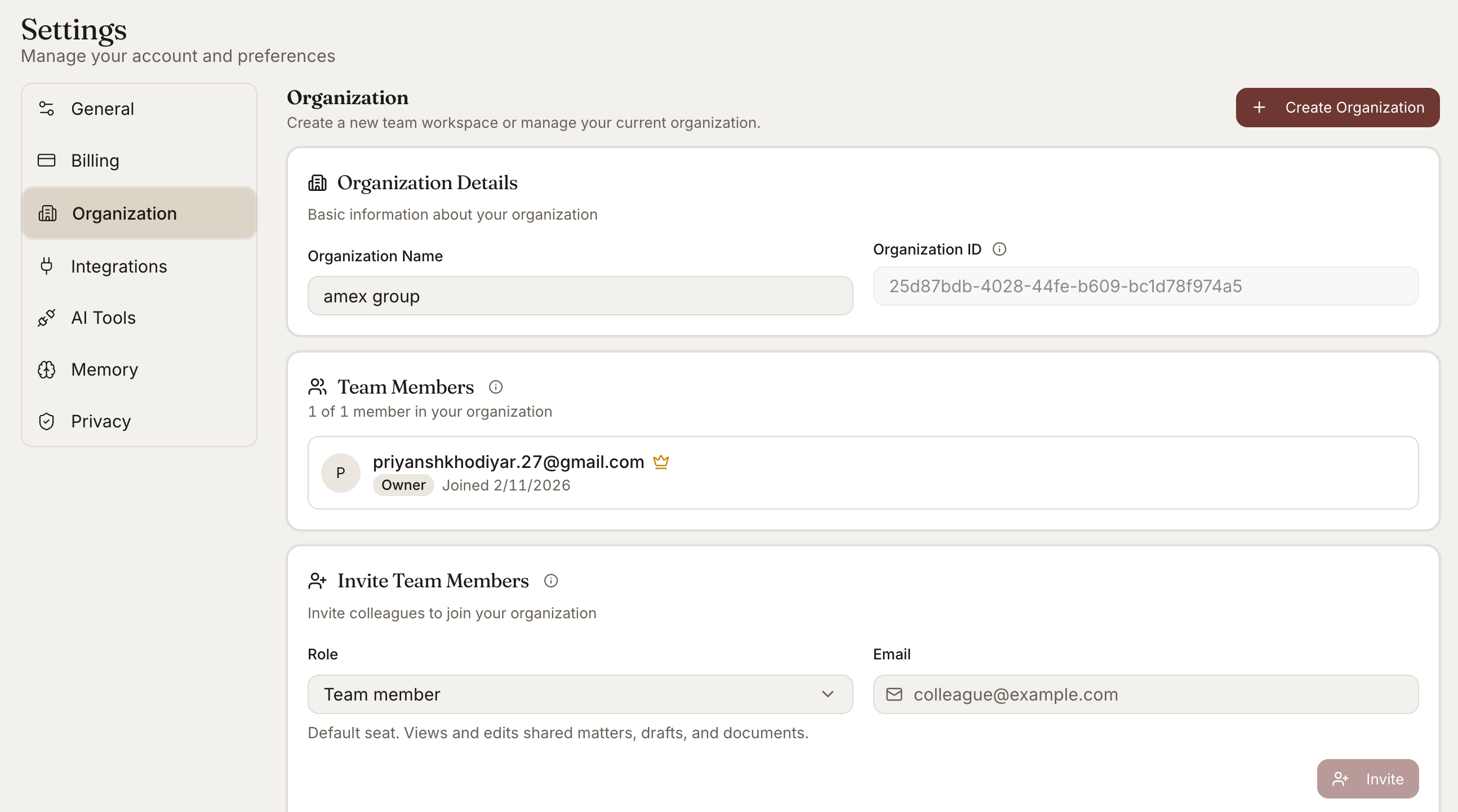
A Team Workspace is the firm-level container that holds all of your matters, clients, documents, and team members. It is the layer above individual user accounts - the place where access controls, shared resources, and organization-wide settings live.
 ## When To Use It
* Setting up your firm or in-house legal team on Vaquill
* Bringing on a new attorney, paralegal, or staff member
* Sharing matters and documents across the team
* Establishing role-based access controls
* Managing organization-wide subscription and billing
## Roles
Full administrative control. Manages billing, members, and all matters.
Manages members and settings. Cannot change billing.
Creates matters and works in assigned matters. Uses all features within their access scope.
Read-only access to matters they are added to. No creation or editing.
Roles are assigned at the organization level. Within a matter, you can further restrict who has access regardless of organization role.
An Owner can change billing and remove other Owners. Limit the number of Owners to two or three trusted partners; everyone else should be Admin or Member.
## Inviting Members
Go to **Settings -> Members** in your [dashboard](https://app.vaquill.ai).
Click **Invite Member**, enter the email address, and pick a role.
The invitee receives an email to accept the invitation.
Once accepted, they appear in the member list.
Pending invitations show their status (sent, expired, accepted). Resend or revoke from the member list.
## Matter-Level Access
Even with organization-wide access, individual matters can be locked down:
* **Open** - All organization members can see and work in the matter
* **Restricted** - Only explicitly added members can see the matter
* **Private** - Only the creator and explicitly added members; not visible in the matter list to others
Use Restricted or Private for matters involving conflicts, sensitive client work, or matters where access should be limited (e.g., HR investigations of firm personnel).
Matter-level access overrides organization role. An Admin will not see a Private matter they have not been added to. Add the right people explicitly when you set a matter to Restricted or Private.
## Organization-Wide Resources
Resources shared across the organization include:
* **Client records** - The firm's client list
* **Skills** - Saved playbooks the team can run on any matter
* **Templates** - Document templates and form precedents
* **Custom playbooks** - For contract review and other tools
* **Workflows** - Multi-step pipelines built once, used everywhere
Each of these can be marked organization-shared or personal to the creator.
## Data Isolation
* One organization's data is fully isolated from another organization's data
* Even Vaquill staff cannot cross-access organizations without explicit authorization (e.g., support tickets you open)
* Vector search, document search, and AI responses are scoped to your organization's data only
## Single Sign-On
For larger firms, single sign-on with your identity provider lets you control authentication centrally - provisioning and deprovisioning users, group-based role assignment, MFA enforcement, and session policy. SSO is available on higher-tier plans; contact sales for the current list of supported identity providers.
## Audit Log
Every administrative action is logged:
* Member invitations, role changes, removals
* Matter creation, access changes, deletions
* Subscription changes
* Document exports
* Share link creation and revocation
The audit log is available to Owners and Admins, with export to CSV.
## Switching Organizations
If you are a member of multiple organizations (e.g., your firm and a co-counsel firm's workspace for a joint matter), use the organization switcher in the top navigation. Each organization is fully isolated; switching changes the matters, documents, and settings you see.
## Tips
**Use Restricted matters as the default for client work.** It avoids accidental cross-visibility between unrelated engagements.
**Invite paralegals as Members, not Viewers.** They can do real work in the matter; reserve Viewer for clients or external observers.
**Review the audit log monthly.** It catches access drift before it becomes a problem.
**Set up SSO before the team grows past \~25 people.** The transition cost rises with team size.
## Related
Client records that span multiple matters.
The matter level beneath the organization.
## When To Use It
* Setting up your firm or in-house legal team on Vaquill
* Bringing on a new attorney, paralegal, or staff member
* Sharing matters and documents across the team
* Establishing role-based access controls
* Managing organization-wide subscription and billing
## Roles
Full administrative control. Manages billing, members, and all matters.
Manages members and settings. Cannot change billing.
Creates matters and works in assigned matters. Uses all features within their access scope.
Read-only access to matters they are added to. No creation or editing.
Roles are assigned at the organization level. Within a matter, you can further restrict who has access regardless of organization role.
An Owner can change billing and remove other Owners. Limit the number of Owners to two or three trusted partners; everyone else should be Admin or Member.
## Inviting Members
Go to **Settings -> Members** in your [dashboard](https://app.vaquill.ai).
Click **Invite Member**, enter the email address, and pick a role.
The invitee receives an email to accept the invitation.
Once accepted, they appear in the member list.
Pending invitations show their status (sent, expired, accepted). Resend or revoke from the member list.
## Matter-Level Access
Even with organization-wide access, individual matters can be locked down:
* **Open** - All organization members can see and work in the matter
* **Restricted** - Only explicitly added members can see the matter
* **Private** - Only the creator and explicitly added members; not visible in the matter list to others
Use Restricted or Private for matters involving conflicts, sensitive client work, or matters where access should be limited (e.g., HR investigations of firm personnel).
Matter-level access overrides organization role. An Admin will not see a Private matter they have not been added to. Add the right people explicitly when you set a matter to Restricted or Private.
## Organization-Wide Resources
Resources shared across the organization include:
* **Client records** - The firm's client list
* **Skills** - Saved playbooks the team can run on any matter
* **Templates** - Document templates and form precedents
* **Custom playbooks** - For contract review and other tools
* **Workflows** - Multi-step pipelines built once, used everywhere
Each of these can be marked organization-shared or personal to the creator.
## Data Isolation
* One organization's data is fully isolated from another organization's data
* Even Vaquill staff cannot cross-access organizations without explicit authorization (e.g., support tickets you open)
* Vector search, document search, and AI responses are scoped to your organization's data only
## Single Sign-On
For larger firms, single sign-on with your identity provider lets you control authentication centrally - provisioning and deprovisioning users, group-based role assignment, MFA enforcement, and session policy. SSO is available on higher-tier plans; contact sales for the current list of supported identity providers.
## Audit Log
Every administrative action is logged:
* Member invitations, role changes, removals
* Matter creation, access changes, deletions
* Subscription changes
* Document exports
* Share link creation and revocation
The audit log is available to Owners and Admins, with export to CSV.
## Switching Organizations
If you are a member of multiple organizations (e.g., your firm and a co-counsel firm's workspace for a joint matter), use the organization switcher in the top navigation. Each organization is fully isolated; switching changes the matters, documents, and settings you see.
## Tips
**Use Restricted matters as the default for client work.** It avoids accidental cross-visibility between unrelated engagements.
**Invite paralegals as Members, not Viewers.** They can do real work in the matter; reserve Viewer for clients or external observers.
**Review the audit log monthly.** It catches access drift before it becomes a problem.
**Set up SSO before the team grows past \~25 people.** The transition cost rises with team size.
## Related
Client records that span multiple matters.
The matter level beneath the organization.