> ## Documentation Index
> Fetch the complete documentation index at: https://vaquill.ai/docs/llms.txt
> Use this file to discover all available pages before exploring further.
# OCR
> Extract clean, readable text from scanned PDFs, images, and handwritten documents
OCR turns a scanned document into text you can read, search, copy, and feed to every other Vaquill AI feature. It handles the material that defeats ordinary text extraction: photocopied contracts, filed exhibits, faxed correspondence, and handwriting.
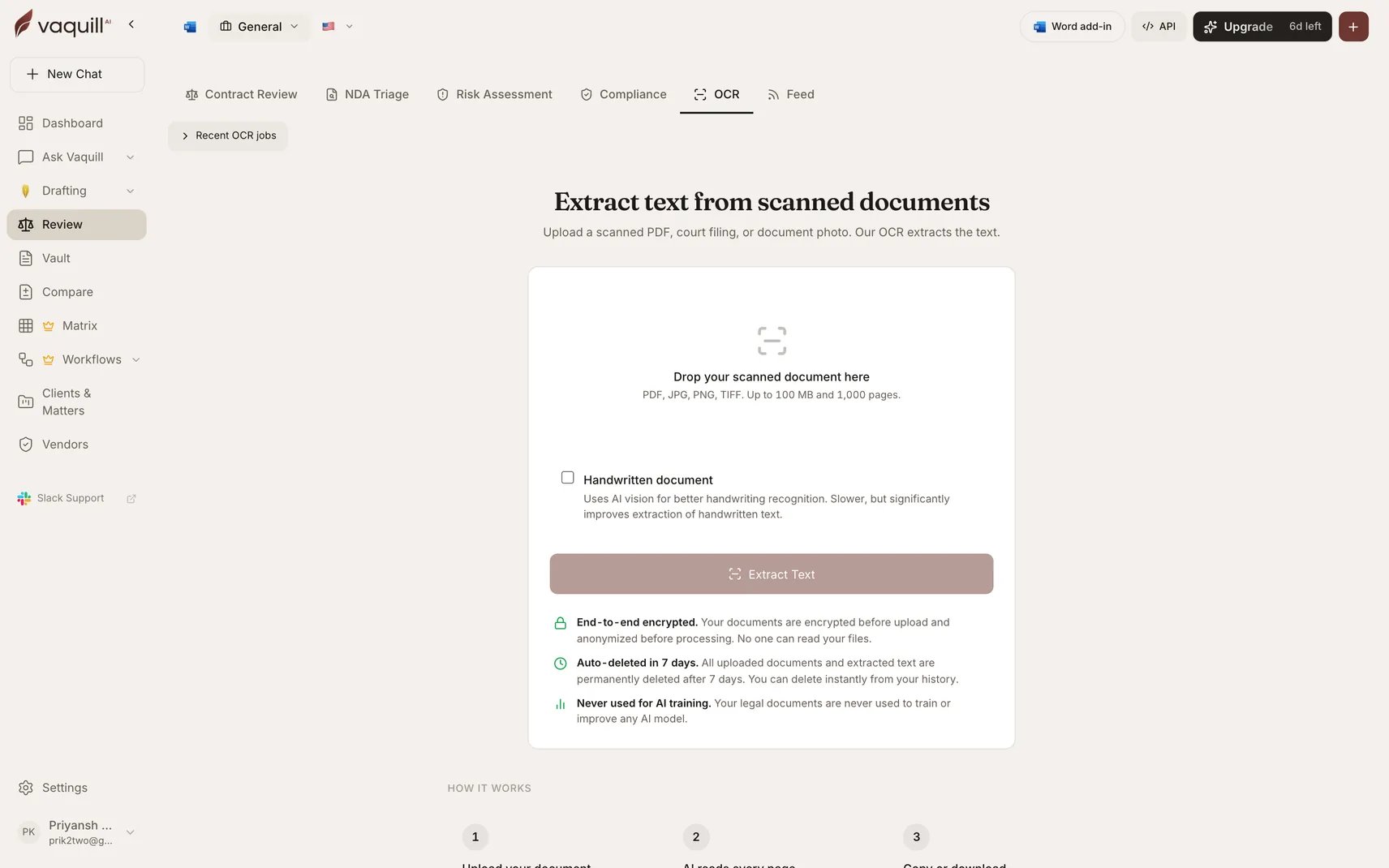
Find it under **Review → OCR**.
 ## When to use it
* A scanned PDF that no other tool can read, because there is no text layer in it
* Court exhibits or filings received as images
* Handwritten notes, annotations, or signed forms
* Any document where copy and paste produces nothing
## Running it
Drop in a PDF, JPG, PNG, or TIFF. Up to **100 MB** and **1,000 pages**.
Tick **Handwritten document** when the file contains handwriting. This switches to AI vision, which is slower but substantially better at handwritten text. Leave it off for ordinary scans, where the default path is faster.
Progress reports the real stages: analyzing page layout, reading text per page, reconstructing tables and formatting, then saving.
Results appear side by side, the original PDF next to the extracted text, so you can check the extraction against the source. Copy it, or download as TXT or DOCX.
## What it preserves
Extraction is structure-aware rather than a flat dump of characters. It detects text regions, tables, and headers, then reconstructs the document's shape as clean text. Tables come back as tables, not as a scrambled run of numbers.
The side-by-side view is the point. Spot-check the extraction against the original before you rely on it, especially for figures, dates, and party names, where a single misread character changes meaning.
## Handwriting
Handwriting is genuinely harder than print, and the results reflect that: accuracy on handwritten text is meaningfully lower than on tables and printed matter. Treat handwritten output as a draft transcription to verify, not as a reliable record.
## OCR elsewhere in Vaquill AI
You usually do not need this tool. Documents uploaded into a matter are **already run through OCR automatically** during ingestion, which is why scanned PDFs are searchable without any extra step. See [File Formats](/docs/guides/file-formats).
Use the OCR tool when you want the extracted text itself as an artifact: to read it, to check an extraction you do not trust, or to get a clean TXT or DOCX out of an image-only file.
## Limitations
* Accuracy depends on scan quality. A skewed, low-resolution, or heavily marked-up page extracts worse than a clean one.
* Handwriting recognition is materially less accurate than print. Verify it.
* Extraction produces text, not legal meaning. It does not analyze, summarize, or review what it read.
* The 100 MB and 1,000 page ceilings are hard limits. Split larger files before uploading.
* Complex multi-column layouts and heavily nested tables may not reconstruct exactly.
## Related
Everything Vaquill AI ingests, including automatic OCR on upload.
The Review hub this tool lives in.
What happens to a document after it is ingested.
Searching the text once it has been extracted.
## When to use it
* A scanned PDF that no other tool can read, because there is no text layer in it
* Court exhibits or filings received as images
* Handwritten notes, annotations, or signed forms
* Any document where copy and paste produces nothing
## Running it
Drop in a PDF, JPG, PNG, or TIFF. Up to **100 MB** and **1,000 pages**.
Tick **Handwritten document** when the file contains handwriting. This switches to AI vision, which is slower but substantially better at handwritten text. Leave it off for ordinary scans, where the default path is faster.
Progress reports the real stages: analyzing page layout, reading text per page, reconstructing tables and formatting, then saving.
Results appear side by side, the original PDF next to the extracted text, so you can check the extraction against the source. Copy it, or download as TXT or DOCX.
## What it preserves
Extraction is structure-aware rather than a flat dump of characters. It detects text regions, tables, and headers, then reconstructs the document's shape as clean text. Tables come back as tables, not as a scrambled run of numbers.
The side-by-side view is the point. Spot-check the extraction against the original before you rely on it, especially for figures, dates, and party names, where a single misread character changes meaning.
## Handwriting
Handwriting is genuinely harder than print, and the results reflect that: accuracy on handwritten text is meaningfully lower than on tables and printed matter. Treat handwritten output as a draft transcription to verify, not as a reliable record.
## OCR elsewhere in Vaquill AI
You usually do not need this tool. Documents uploaded into a matter are **already run through OCR automatically** during ingestion, which is why scanned PDFs are searchable without any extra step. See [File Formats](/docs/guides/file-formats).
Use the OCR tool when you want the extracted text itself as an artifact: to read it, to check an extraction you do not trust, or to get a clean TXT or DOCX out of an image-only file.
## Limitations
* Accuracy depends on scan quality. A skewed, low-resolution, or heavily marked-up page extracts worse than a clean one.
* Handwriting recognition is materially less accurate than print. Verify it.
* Extraction produces text, not legal meaning. It does not analyze, summarize, or review what it read.
* The 100 MB and 1,000 page ceilings are hard limits. Split larger files before uploading.
* Complex multi-column layouts and heavily nested tables may not reconstruct exactly.
## Related
Everything Vaquill AI ingests, including automatic OCR on upload.
The Review hub this tool lives in.
What happens to a document after it is ingested.
Searching the text once it has been extracted.