> ## Documentation Index
> Fetch the complete documentation index at: https://vaquill.ai/docs/llms.txt
> Use this file to discover all available pages before exploring further.
# Running a workflow
> Attaching documents, filling the form, auto-fill, live progress, cancelling, and run history
Every workflow, built-in or custom, runs through the same machinery: attach documents, answer a form, launch, watch, collect. This page covers the parts that are identical across all of them.
 ## The launcher
Opening a workflow from the gallery lands you on its launcher. Three things to fill in.
### 1. Document slots
Built-in workflows declare typed **slots** rather than one generic upload box. Each slot says what belongs in it and how many documents it takes.
| Kind of slot | What goes in it |
| -------------------------- | ------------------------------------------------------------------------------------------------------------------------------------ |
| The documents under review | The contracts, transcripts, or filings the workflow is actually analysing. Almost every workflow has one, and it is always required. |
| Your playbook | Your negotiation playbook, when the workflow scores against it rather than against market benchmarks. |
| Supporting record | Pleadings, the underlying agreement, prior correspondence: context the workflow reads but does not score. |
| Exhibits | Evidence to attach to a drafted document. |
| The other side's paper | Their filing, their discovery service, their complaint. |
Each slot is labelled on the launcher with what it wants, how many documents it takes, and whether it is required. The launcher enforces those counts before it lets you submit and the server re-validates on the way in, so a malformed launch never reaches the pipeline.
Put each document in the slot that describes it. Dropping the opposing party's complaint into the documents-under-review slot instead of the other-side slot changes what the workflow thinks it is analysing, and it will not warn you.
Documents must finish ingesting before a workflow can read them. If you upload and launch immediately, the run waits. In the custom builder there is an explicit [Wait For Document Ingestion](/docs/workflows/builder/steps/document-io) step for exactly this.
### 2. Inputs
Each workflow declares its own typed input fields. Field types you will see:
| Field | Renders as |
| ------------ | -------------------------------------------- |
| Text | Single-line text box |
| Long text | Textarea, usually with an **Improve** action |
| Select | Single-choice picker |
| Multi-select | Multi-choice picker |
| Yes / no | Toggle |
| List | A list of one-line inputs with "Add another" |
| Date | Native date picker |
| Party name | Text box scoped to a party |
| Jurisdiction | US state or federal court picker |
The form runs in **two steps**. Step 1, Essentials, asks only for what is required, and a counter tracks how many of those you have filled. Step 2, preferences, holds the optional settings: tone, deadlines, thresholds.
You can launch straight from step 1 and take every optional default, which is the right move on a first run.
Required fields are marked. Optional select fields left blank fall through to the workflow's documented default, which each workflow page lists.
**See the output before you spend the time.** The launcher lists what you will get and offers a downloadable **sample** of each artifact, so you can check the format suits you before uploading anything.
These inputs are not cosmetic. They change what the pipeline treats as risky. Setting "Which side are you on?" to Receiving Party in NDA Bulk Review inverts most of the scoring rubric.
### 3. Matter scope (optional)
Scoping a run to a matter threads that matter through every matter-aware step and lets the workflow attach its output back into the matter workspace when it finishes.
## Three shortcuts worth knowing
Rather than typing eighteen fields by hand, point the launcher at a source and let it pre-fill. It accepts any combination of an uploaded document, a free-text brief ("demand letter against Acme for breach of a \$50K consulting agreement, governing law California"), or a matter whose practice area and jurisdiction it can read.
Extracted values that fail the field's own validation, for example a select value that is not one of its options, are dropped silently rather than guessed at. You fill those by hand. Auto-fill is read-only and never creates a run.
Long-text fields carry a one-click **Improve** action. It rewrites your draft for clarity and structure using the workflow's own title, description, and that field's help text as the spec for what a good answer looks like. It does not invent facts, and on any failure it hands back your original text unchanged.
Workflows that ship example inputs expose a **Try with example data** button. It fills empty fields only and never overwrites anything you have already typed, so you can see a realistic configuration without losing your own work.
## While it runs
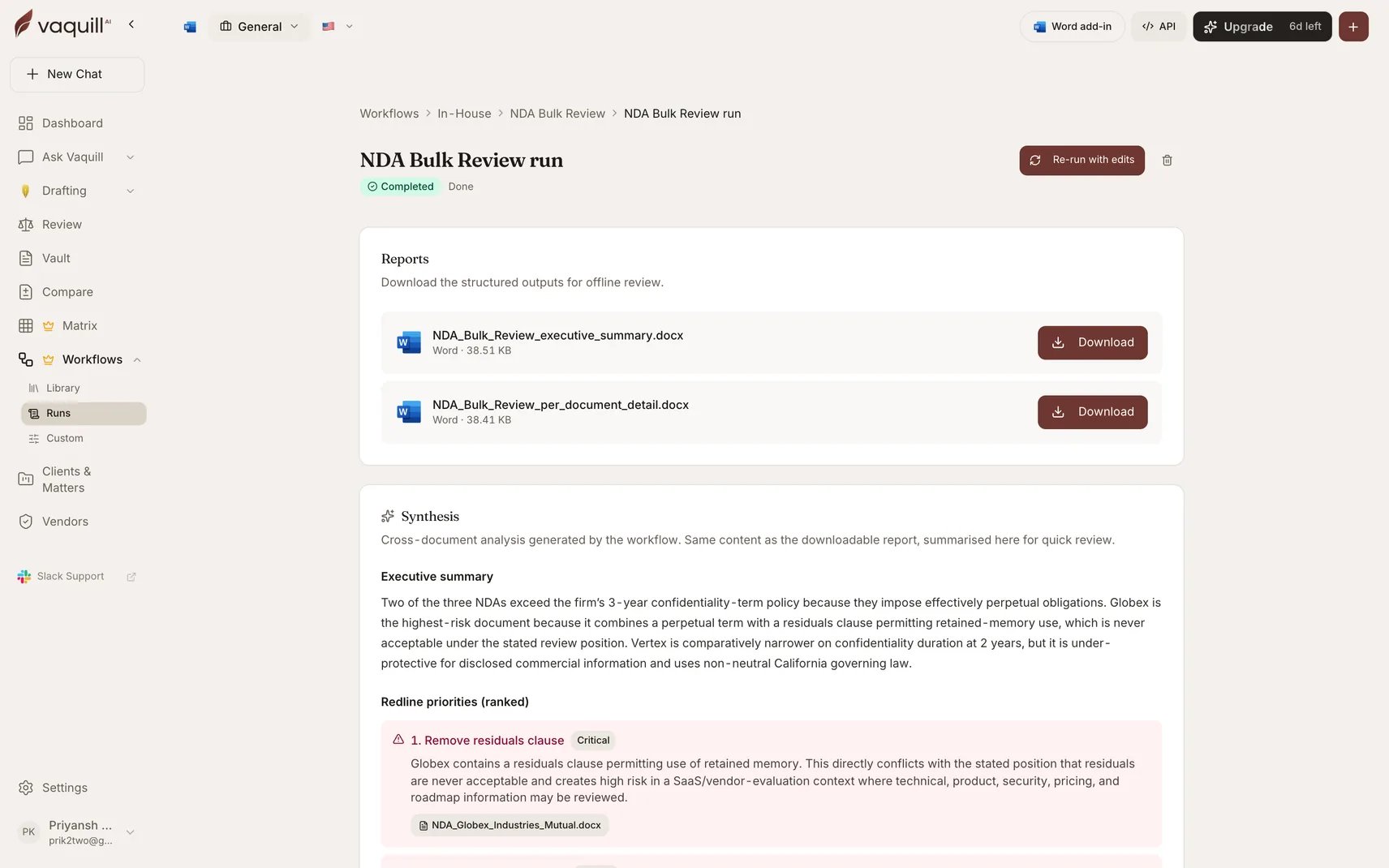
A launch returns immediately and the pipeline executes in the background. Runs move through a fixed status sequence:
**Queued → Preparing → Extracting → Analysing → Rendering → Completed**
with **Error** and **Cancelled** as the other terminal states. The same status badge appears in the gallery's recent-runs strip, the matter's workflows tab, and the run viewer, so a run reads the same everywhere.
The run view shows the current step, a percentage, and a live audit timeline. Entries on that timeline record:
| Entry | Meaning |
| ---------------------------- | ------------------------------------------ |
| Created, Started | Run accepted, pipeline dispatched |
| Step started, Step completed | A named pipeline stage entered or finished |
| Progress | Percentage update |
| Document processed | One document finished its pass |
| Artifact rendered | An output file was written |
| Completed, Error, Cancelled | Terminal |
### Long-running workflows
Most workflows finish in the minutes range printed on their page. A few fan out over large document portfolios and are dispatched to a dedicated long-running queue with a two-hour ceiling instead of the default thirty minutes:
* [Compliance Scan Agent](/docs/workflows/built-in/compliance-scan-agent)
* [Matter Triage Agent](/docs/workflows/built-in/matter-triage-agent)
* [Contract Obligations and Renewal Tracker](/docs/workflows/built-in/obligations-renewal-tracker)
* [Deposition Transcript Analyzer](/docs/workflows/built-in/deposition-transcript-analyzer)
* [Privilege Log Builder](/docs/workflows/built-in/privilege-log-builder)
* [M\&A Due Diligence](/docs/workflows/built-in/ma-due-diligence)
### Cancelling
Cancel is cooperative and immediate: the background task is revoked, the run is marked Cancelled, and a cancellation event lands in the audit log. Cancelling an already-finished run is a no-op rather than an error, so a double-click does no damage. Only the run's owner can cancel it.
## After it finishes
Runs persist. The Runs index lists every run you have launched with its workflow, status, and timestamps, and each run detail page keeps its artifacts, its input snapshot, and its full audit trail. Owners can delete a run outright.
See [Results and artifacts](/docs/workflows/results-and-artifacts) for what you get and how downloads work.
## Retries and duplicate launches
The launch endpoint accepts an idempotency key. A client that retries after a network blip with the same key gets the existing run back instead of starting a second one, which matters for the workflows that cost real money per run.
## Related
What comes out, how citations are verified, and how downloads work.
All 25 workflows with their slots, inputs, and outputs.
## The launcher
Opening a workflow from the gallery lands you on its launcher. Three things to fill in.
### 1. Document slots
Built-in workflows declare typed **slots** rather than one generic upload box. Each slot says what belongs in it and how many documents it takes.
| Kind of slot | What goes in it |
| -------------------------- | ------------------------------------------------------------------------------------------------------------------------------------ |
| The documents under review | The contracts, transcripts, or filings the workflow is actually analysing. Almost every workflow has one, and it is always required. |
| Your playbook | Your negotiation playbook, when the workflow scores against it rather than against market benchmarks. |
| Supporting record | Pleadings, the underlying agreement, prior correspondence: context the workflow reads but does not score. |
| Exhibits | Evidence to attach to a drafted document. |
| The other side's paper | Their filing, their discovery service, their complaint. |
Each slot is labelled on the launcher with what it wants, how many documents it takes, and whether it is required. The launcher enforces those counts before it lets you submit and the server re-validates on the way in, so a malformed launch never reaches the pipeline.
Put each document in the slot that describes it. Dropping the opposing party's complaint into the documents-under-review slot instead of the other-side slot changes what the workflow thinks it is analysing, and it will not warn you.
Documents must finish ingesting before a workflow can read them. If you upload and launch immediately, the run waits. In the custom builder there is an explicit [Wait For Document Ingestion](/docs/workflows/builder/steps/document-io) step for exactly this.
### 2. Inputs
Each workflow declares its own typed input fields. Field types you will see:
| Field | Renders as |
| ------------ | -------------------------------------------- |
| Text | Single-line text box |
| Long text | Textarea, usually with an **Improve** action |
| Select | Single-choice picker |
| Multi-select | Multi-choice picker |
| Yes / no | Toggle |
| List | A list of one-line inputs with "Add another" |
| Date | Native date picker |
| Party name | Text box scoped to a party |
| Jurisdiction | US state or federal court picker |
The form runs in **two steps**. Step 1, Essentials, asks only for what is required, and a counter tracks how many of those you have filled. Step 2, preferences, holds the optional settings: tone, deadlines, thresholds.
You can launch straight from step 1 and take every optional default, which is the right move on a first run.
Required fields are marked. Optional select fields left blank fall through to the workflow's documented default, which each workflow page lists.
**See the output before you spend the time.** The launcher lists what you will get and offers a downloadable **sample** of each artifact, so you can check the format suits you before uploading anything.
These inputs are not cosmetic. They change what the pipeline treats as risky. Setting "Which side are you on?" to Receiving Party in NDA Bulk Review inverts most of the scoring rubric.
### 3. Matter scope (optional)
Scoping a run to a matter threads that matter through every matter-aware step and lets the workflow attach its output back into the matter workspace when it finishes.
## Three shortcuts worth knowing
Rather than typing eighteen fields by hand, point the launcher at a source and let it pre-fill. It accepts any combination of an uploaded document, a free-text brief ("demand letter against Acme for breach of a \$50K consulting agreement, governing law California"), or a matter whose practice area and jurisdiction it can read.
Extracted values that fail the field's own validation, for example a select value that is not one of its options, are dropped silently rather than guessed at. You fill those by hand. Auto-fill is read-only and never creates a run.
Long-text fields carry a one-click **Improve** action. It rewrites your draft for clarity and structure using the workflow's own title, description, and that field's help text as the spec for what a good answer looks like. It does not invent facts, and on any failure it hands back your original text unchanged.
Workflows that ship example inputs expose a **Try with example data** button. It fills empty fields only and never overwrites anything you have already typed, so you can see a realistic configuration without losing your own work.
## While it runs
A launch returns immediately and the pipeline executes in the background. Runs move through a fixed status sequence:
**Queued → Preparing → Extracting → Analysing → Rendering → Completed**
with **Error** and **Cancelled** as the other terminal states. The same status badge appears in the gallery's recent-runs strip, the matter's workflows tab, and the run viewer, so a run reads the same everywhere.
The run view shows the current step, a percentage, and a live audit timeline. Entries on that timeline record:
| Entry | Meaning |
| ---------------------------- | ------------------------------------------ |
| Created, Started | Run accepted, pipeline dispatched |
| Step started, Step completed | A named pipeline stage entered or finished |
| Progress | Percentage update |
| Document processed | One document finished its pass |
| Artifact rendered | An output file was written |
| Completed, Error, Cancelled | Terminal |
### Long-running workflows
Most workflows finish in the minutes range printed on their page. A few fan out over large document portfolios and are dispatched to a dedicated long-running queue with a two-hour ceiling instead of the default thirty minutes:
* [Compliance Scan Agent](/docs/workflows/built-in/compliance-scan-agent)
* [Matter Triage Agent](/docs/workflows/built-in/matter-triage-agent)
* [Contract Obligations and Renewal Tracker](/docs/workflows/built-in/obligations-renewal-tracker)
* [Deposition Transcript Analyzer](/docs/workflows/built-in/deposition-transcript-analyzer)
* [Privilege Log Builder](/docs/workflows/built-in/privilege-log-builder)
* [M\&A Due Diligence](/docs/workflows/built-in/ma-due-diligence)
### Cancelling
Cancel is cooperative and immediate: the background task is revoked, the run is marked Cancelled, and a cancellation event lands in the audit log. Cancelling an already-finished run is a no-op rather than an error, so a double-click does no damage. Only the run's owner can cancel it.
## After it finishes
Runs persist. The Runs index lists every run you have launched with its workflow, status, and timestamps, and each run detail page keeps its artifacts, its input snapshot, and its full audit trail. Owners can delete a run outright.
See [Results and artifacts](/docs/workflows/results-and-artifacts) for what you get and how downloads work.
## Retries and duplicate launches
The launch endpoint accepts an idempotency key. A client that retries after a network blip with the same key gets the existing run back instead of starting a second one, which matters for the workflows that cost real money per run.
## Related
What comes out, how citations are verified, and how downloads work.
All 25 workflows with their slots, inputs, and outputs.