

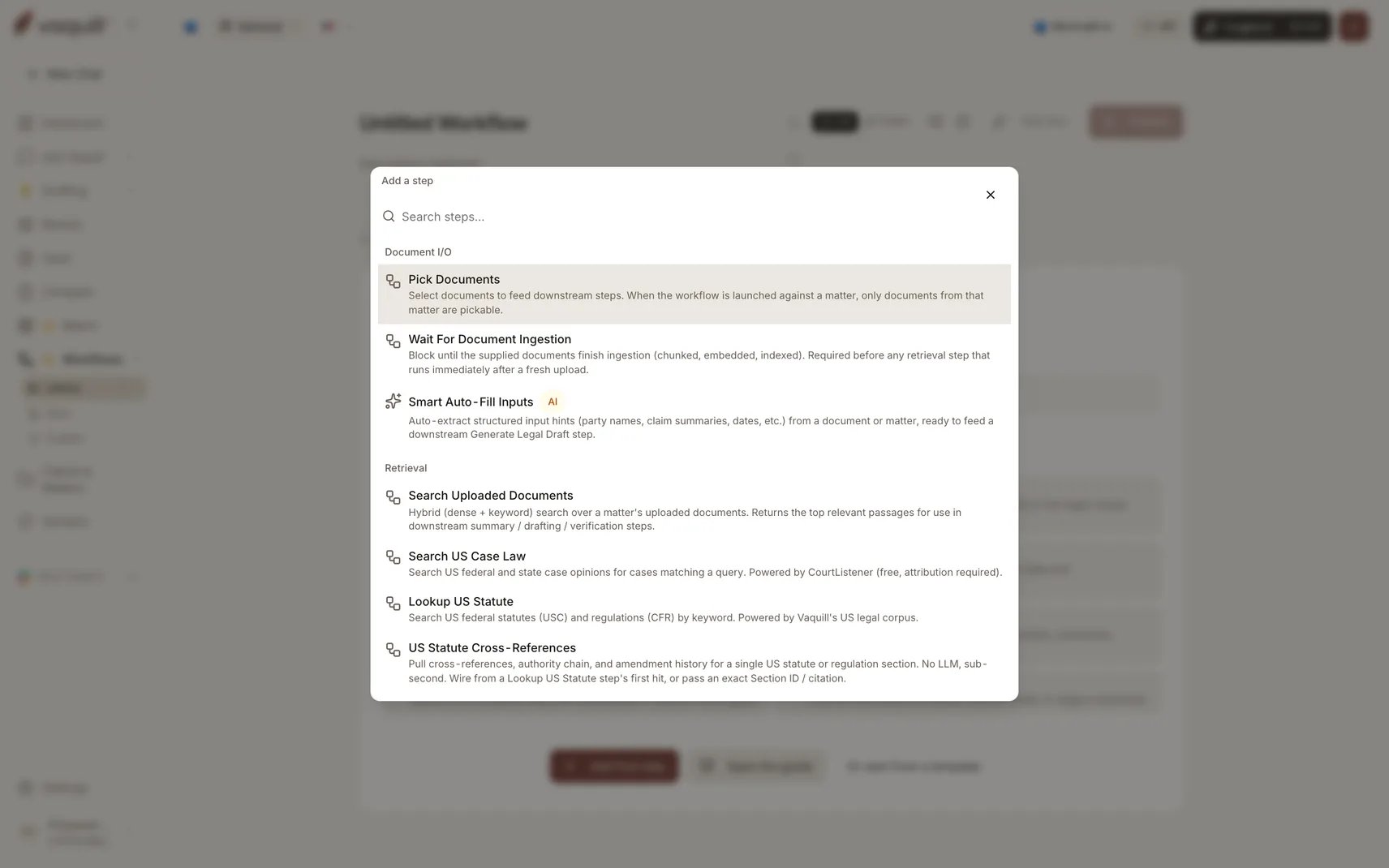
The step palette, grouped by category with AI badges
The eight categories
4.1 Document I/O
3 steps. Pick which documents the workflow reads, wait for an upload to finish ingesting, or save an output back to a matter.
4.2 Retrieval
5 steps. Pull passages from your documents, search US case law, look up a statute or its cross-references, or search the web.
4.3 Extraction
3 steps. Summarize a document, pull a chronology, or extract structured contract facts.
4.4 Analysis
5 steps. Run a matrix, compare two documents, check compliance gaps, score against benchmarks, or synthesize across a set.
4.5 Verification
2 steps. Detect fabricated case citations, and drop synthesis findings that reference documents outside the input set.
4.6 Drafting
1 step. Generate a template-constrained legal document and save it to Drafts.
4.7 Routing and logic
3 steps. Branch on a condition, fan a step out across documents, or hand off to a constrained agent.
4.8 Output
2 steps. Export a DOCX report or an XLSX matrix workbook.
Build and Run Matrix lives in the Analysis category, and Save to Matter lives in Document I/O even though it is an output-kind step. The category is where the palette files it; the kind is how it behaves.
Step kinds
Every step carries a kind badge in the palette so you can see at a glance what it will do.
Nine of the 25 step types are AI steps. Those are the ones that cost real money and take real time; the cost estimator prices them from your organization’s actual usage history rather than a flat table.
Latency tiers
Each step declares a tier so the builder can warn you before you chain five slow steps together.Adding a step
Click Add Step, or press ⌘K / Ctrl+K from anywhere in the builder, to open the step catalog. It is grouped by category, searchable, and shows the AI and routing badges. Picking a step inserts it into the chain and opens its config pane. To insert mid-flow, hover between any two steps in list view to reveal a thin ”+” affordance. In graph mode, drag from a step’s bottom edge onto empty canvas.Configuring a step
Selecting a step opens a sticky right-side pane. The chain on the left stays interactive, so you can hop between steps without losing context. Every field that wants a document, matter, matrix template, or upstream output gets a real picker. No UUID pasting.Wiring outputs into the next step
This is the part that makes a chain a chain rather than a list. Long-text fields (verification text, export body, draft instructions) carry an Upstream output toggle. Click it and pick the source step instead of copy-pasting. The picker stores the link, and the executor pulls the live value at run time. Under the hood the binding is a template reference such as{{ step_0.summary_markdown }}, but you will not see template-looking text unless you deliberately switch a field to the raw-text editor.
What a step exposes
A step can only be read for the fields its output model actually declares. That is why the picker shows you a concrete list rather than a free-text box, and why publishing catches a reference to a field a step does not emit. Some pairs are designed to chain directly:Related
Branching and loops
Making the chain conditional or fanning it out.
Troubleshooting
When a reference will not resolve.