Someone emails you a PDF contract and asks for your redlines. The honest first move is to stop trying to redline it inside the PDF. A PDF is a final-format file, not a negotiation format. You can scribble comments on top of it, but the other side cannot click accept or reject on a comment. Get the document into Word, mark it up with track changes, and send back a file the counterparty can actually work with.
That through-line runs the whole way through this post. Marking up inside a PDF is a dead end for real contract negotiation. Everything below either helps you escape the PDF or explains the narrow cases where you can stay put.
TL;DR
- A PDF is a final-format file. Adobe built it to look the same everywhere and resist editing. That is the opposite of what a negotiated draft needs.
- You can comment on a PDF, but you cannot really redline it. Acrobat's markup tools (highlight, strikethrough, sticky notes, replace text) sit on top of the page. They do not edit the text, and the other side cannot accept or reject them with one click.
- The professional move is to get to Word. Convert the PDF to a .docx file, turn on Track Changes, and send a file the counterparty can accept, reject, and counter.
- Conversion breaks formatting. Microsoft itself warns that lines and pages may break in new places, and complex layouts convert badly. Budget cleanup time and always proofread against the original PDF.
- An AI compare tool can shortcut the grunt work of finding what changed between two versions, but you still deliver edits in Word so they stay negotiable.
- The decision rule: comment in the PDF only for read-only sign-off or a quick question. For anything you intend to negotiate, move to Word first.
Why can Acrobat's markup tools not produce a real redline the counterparty can negotiate?
For the wider topic, see our document tools, redline, and matrix guide series. This post is the PDF-specific how-to. If you want the vocabulary sorted out first, read redline vs track changes.
Why redlining inside a PDF fails
Start with what a PDF is. Adobe designed the format so a document looks identical on any screen or printer and resists casual editing. That is great for a signed final, a court filing, or a brochure. It is the wrong container for a draft two parties still argue over.
A real redline needs three things the PDF cannot give you. The text has to be editable so you can rewrite a clause. Each change has to be attributable so everyone sees who proposed what. And every change has to be acceptable or rejectable so the negotiation can converge. A PDF gives you none of these natively.
So when someone asks you to "redline this PDF," they almost always mean "send me your changes to this contract." The PDF is just the wrapper it arrived in. Your job is to get out of the wrapper.
Method 1: Comment and mark up inside Acrobat (and why it falls short)
Adobe Acrobat does let you mark up a PDF, and for some jobs that is enough. Open the file, go to the comment or markup tools, and you get a familiar set: highlight, strikethrough, underline, insert text, replace text, sticky notes, and freehand drawing. The replace-text tool even shows a strikethrough plus your suggested wording, which looks like a redline.
Here is the catch, and it is the whole point. These tools annotate on top of the page. They do not change the underlying text. A strikethrough is a colored line drawn over words, not a deletion. A "replace text" note is a comment, not an edit. (Adobe Acrobat help documents these as comment and markup tools, not editing tools.)
What that means in practice:
- The other side cannot accept or reject your marks. There is no accept button. Whoever owns the contract has to read each comment and retype the change by hand into their own draft.
- Comments scatter. On a heavily marked contract, notes pile up across the page rather than sitting in a clean change list. It gets messy fast.
- No version lineage. Round two comes back as a fresh PDF with no link to what you proposed in round one.
Commenting in the PDF is fine in three cases. You are signing off on a near-final and want to flag one typo. You are asking a clarifying question. Or the document is read-only and nobody expects edits back. For an actual negotiation, it creates manual work for the other side and invites transcription errors.
Method 2: Convert the PDF to Word, then use Track Changes
This is the method that does what people actually want. You turn the PDF back into an editable Word file, switch on Track Changes, and produce a redline the counterparty can negotiate.
The steps:
- Convert the PDF to .docx. Two reliable paths. In Acrobat, use Export PDF and choose Microsoft Word as the output. Or open Word, go to File then Open, pick the PDF, and let Word convert a copy. Word leaves the original PDF untouched and builds an editable version.
- Proofread the conversion against the original PDF. This step is not optional. Conversion is imperfect, so check headings, numbering, defined terms, and any tables before you touch a word.
- Turn on Track Changes. In Word, go to the Review tab and toggle Track Changes on. Now every edit is recorded, attributed to you, and stamped with a time.
- Make your edits. Rewrite clauses, delete language, add provisions. Each shows as an insertion or deletion the other side can accept or reject one at a time.
- Clean the file before you send it. Toggling Track Changes off does not scrub anything. Run Word's Document Inspector to strip comments, prior revisions, and author metadata. We cover why this matters in redline vs track changes.
- Send the .docx, not a fresh PDF. Sending back a PDF would put the other side right back at square one.
The big caveat is conversion fidelity. Microsoft is blunt about it. Its own guidance warns that a converted document "might not have a perfect page-to-page correspondence with the original" and that "lines and pages may break at different locations." Conversion works best with PDFs that are mostly text. Documents heavy on tables, columns, or graphics convert poorly. A scanned PDF is worse still, since it is an image and needs OCR before any of this works, and OCR adds its own errors.
Method 3: Use an AI tool to compare and draft the redline
The third path automates the slow part: figuring out what differs between two versions, or what differs from your standard, and producing the markup.
Two flavors are worth separating. A document compare takes the counterparty's version and your prior version and generates a redline of the differences. An AI review reads one contract against your playbook or a standard form and proposes edits clause by clause. Both can ingest a PDF and both can write the result into a Word file with native track changes, so your output stays negotiable.
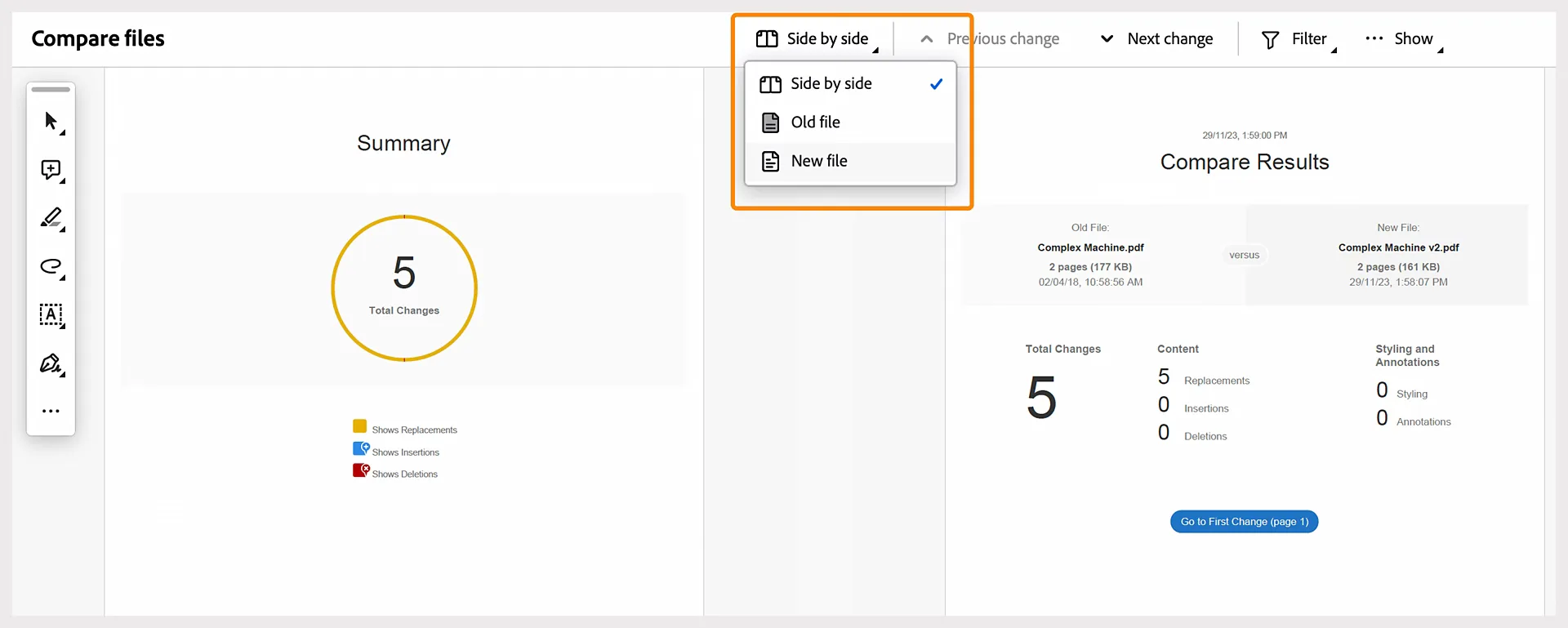
This shines when the document is long or the changes are buried. Instead of eyeballing forty pages of a converted draft, you get a structured list of what moved. We walk through the mechanics of getting a trustworthy diff in how to compare documents and export clean redlines, and the playbook-review approach in the AI contract review guide.
Two cautions. An AI tool that ingests a messy PDF inherits the same conversion problems, so a clean source still matters. And the output is a draft of a redline, not a final one. You read every proposed change before it goes out. The tool finds candidates; the lawyer makes the call.
Which method to use
| Method | Best for | Output | Main limitation |
|---|---|---|---|
| Comment in Acrobat | Read-only sign-off, one quick flag | Annotations on top of the PDF | Other side cannot accept or reject; manual retyping |
| Convert to Word + Track Changes | Any real negotiation | Editable .docx the counterparty can accept or reject | Conversion breaks formatting; needs proofreading |
| AI compare or review | Long docs, buried changes, many contracts | Word redline drafted for you | Inherits source-PDF quality; needs human review |
The split is simple. Comment in the PDF only when nothing comes back to you for editing. The moment the document is alive and negotiable, get it into Word, whether you convert it yourself or let a tool do the compare and write the track changes for you.
Common pitfalls
Formatting breaks on conversion and nobody checks. This is the most frequent failure. A clause silently drops, a numbered list renumbers, a defined term loses its capitalization, and the redline you send is subtly wrong. Always read the converted Word file against the source PDF first.
You lose the other side's changes. If you mark up the PDF and they retype your comments by hand, transcription slips happen. Worse, if both sides keep flattening drafts back to PDF between rounds, there is no clean lineage of who changed what. Stay in Word across the whole negotiation.
Version chaos. v3, v3-clean, v4-FINAL, v4-FINAL-really. When you run a compare against the wrong base, the redline shows edits that were never on the table. Name versions with a date plus a clean-or-marked tag, and always compare against the exact file you sent.
Sending a flattened "clean" PDF that still carries metadata. Exporting to PDF does not always strip comments and hidden data. Scrub in Word before you export, and confirm the PDF is actually clean.
Treating a scanned PDF like a digital one. A scan is a picture of text. It needs OCR before any conversion or markup, and OCR introduces errors of its own. Check it character by character on critical terms like dollar figures and dates.
The verdict
Do not redline a PDF. Redline a contract.
The PDF is the format the document showed up in, not the format the work happens in. For a read-only sign-off or a single question, an Acrobat comment is fine. For everything else, the professional path is to get the text into Word, turn on Track Changes, and hand back a file the other side can accept, reject, and counter. An AI compare or review can do the heavy lifting of spotting what changed, as long as the output lands as a clean Word redline you have read yourself.
If you want this handled in one place, Vaquill AI can ingest a contract, surface what changed against your prior version or standard, and write the redline back into native Word track changes. What you send stays negotiable. You can also browse plain-English clause references in our clause library while you review.
FAQ
Can you redline a PDF directly? Not in the way contract negotiation needs. You can add comments and markup on top of a PDF in Acrobat, including highlights, strikethroughs, and replace-text notes, but these sit on the page rather than editing the text. The other side cannot accept or reject them with a click. For a true redline, convert the PDF to Word and use Track Changes.
How do I convert a PDF to Word to track changes? Use Acrobat's Export PDF to Microsoft Word, or open the PDF in Word through File then Open, which converts a copy. Once you have the .docx, go to the Review tab, turn on Track Changes, and edit. Proofread the converted file against the original PDF first, because conversion can shift formatting and drop content.
Why does my PDF look broken after converting to Word? PDF is a fixed layout, so converting it back to flowing Word text is inherently lossy. Microsoft notes that lines and pages may break in different locations and that conversion works best with mostly-text documents. Tables, columns, graphics, and scanned pages convert worst. Expect cleanup and always compare against the source.
Is commenting on a PDF the same as redlining? No. Commenting layers notes and marks over a fixed page, which the counterparty has to read and apply by hand. Redlining produces editable, attributed changes the other side can accept or reject. A PDF comment is a suggestion on top of the document; a redline is a change inside it.
What about a scanned PDF contract? A scanned PDF is an image, not text, so you cannot mark up or convert it usefully until you run OCR to recognize the characters. OCR adds its own errors, so check critical terms like amounts, dates, and party names carefully. Once it is real text, treat it like any other PDF and move it into Word.
Can AI redline a PDF for me? An AI tool can ingest a PDF, compare it to a prior version or a standard, and draft a redline written into a Word file with track changes. That saves time finding what changed in a long document. It is a draft, not a final answer, so read every proposed edit before sending. A clean source file still matters, since a messy PDF carries its problems into the output.
Should I ever send a contract back as a PDF? Only when it is genuinely final and not open to further edits, such as a signed copy or a clean execution version. While a contract is still being negotiated, send a Word file so the other side can keep tracking changes. Flattening to PDF between rounds breaks the change lineage and forces manual rework.
What is the safest way to handle redlines across many rounds? Stay in Word for the whole negotiation, name each version with a date and a clean-or-marked tag, and run your own compare against the exact file you sent rather than trusting a received redline. Scrub metadata with Word's Document Inspector before any external send. Consistent naming and your own comparison prevent the most common version-chaos mistakes.
Sources
- How to track changes, redline and add comments to PDFs (Juro)
- How to convert PDF redlines to MS Word (Contract Nerds)
- Edit a PDF in Word (Microsoft Support)
- Track changes in Word (Microsoft Support)
Adobe Acrobat help documents the comment, markup, Export PDF, and Compare Files tools referenced above; its pages block automated checks, so it is named here without a link.
Last updated: June 2026.
New legal AI guides, weekly.
Further Reading
How to Redline a Contract in Microsoft Word
Read postHow to Redline a Contract in Google Docs
Read postContract Renewal Tracking: How to Never Miss a Deadline
Read postContract Turnaround Time: How to Measure and Cut It
Read postHow to Draft a Contract: A Step-by-Step Guide
Read postMicrosoft Copilot for Lawyers: What It Can and Cannot Do
Read post
Co-Founder & CEO · Attorney
Arshita leads product and strategy at Vaquill, building the legal AI suite that solo, small-firm, and in-house US lawyers use to run a matter end to end.