A partner I know once sent a redline back to opposing counsel feeling pretty good about the round. Two days later the other side's associate called and, in the politest possible way, mentioned the comment her colleague had left in the margin: a note about the absolute floor they would accept on the indemnity cap.
It was still inside the file. Nobody had stripped it. The negotiation was effectively over before the next call started.
That is what most redline disasters look like. Not a missed clause. A process failure at the export step.
If you want to learn how to compare documents and export clean redlines reliably, the hard part is almost never the comparison itself. It is the discipline around it: catching edits nobody tracked, and shipping a file that says only what you meant to say.
This is a step-by-step on doing it right, plus the surprisingly common ways it goes sideways in practice.
How to compare documents and export a clean redline
Accept all tracked changes in both files, run a real document comparison (Word: Review, Compare, Compare; or a dedicated tool) to diff the two final versions, review the redline for substance, then export. To make the redline clean: accept or reject every change, delete all comments, run Inspect Document to strip metadata, and deliver a PDF unless the other side needs an editable file. A document comparison tool rebuilds the true difference between two files even when nobody used Track Changes.
TL;DR
- A clean redline is a deliverable, not a byproduct. Treat it like one.
- Track Changes records what one editor did. Document comparison reconstructs the true diff between two final files, regardless of who tracked what. They are not the same tool.
- The dangerous edits are the untracked ones. The dangerous leak is the metadata you forgot to strip.
- "Clean" has to mean two things at once: visually clean (no comparison noise, no stray markup) and metadata-clean (no comments, author names, or edit history riding along).
- Word's built-in compare over-reports changes and can hide edits when Track Changes is silently toggled off. Know its failure modes before you rely on it.
- Final step, almost always: inspect the document, then deliver a PDF unless the other side genuinely needs an editable file.
Why does a document comparison catch changes that Track Changes can miss?
Part of our document tools, redline, and matrix guide series.
For related document-tools coverage, see Redline vs Track Changes: What Lawyers Actually Mean (and When to Use Each) and Best AI Tools for Comparing Document Versions in 2026.
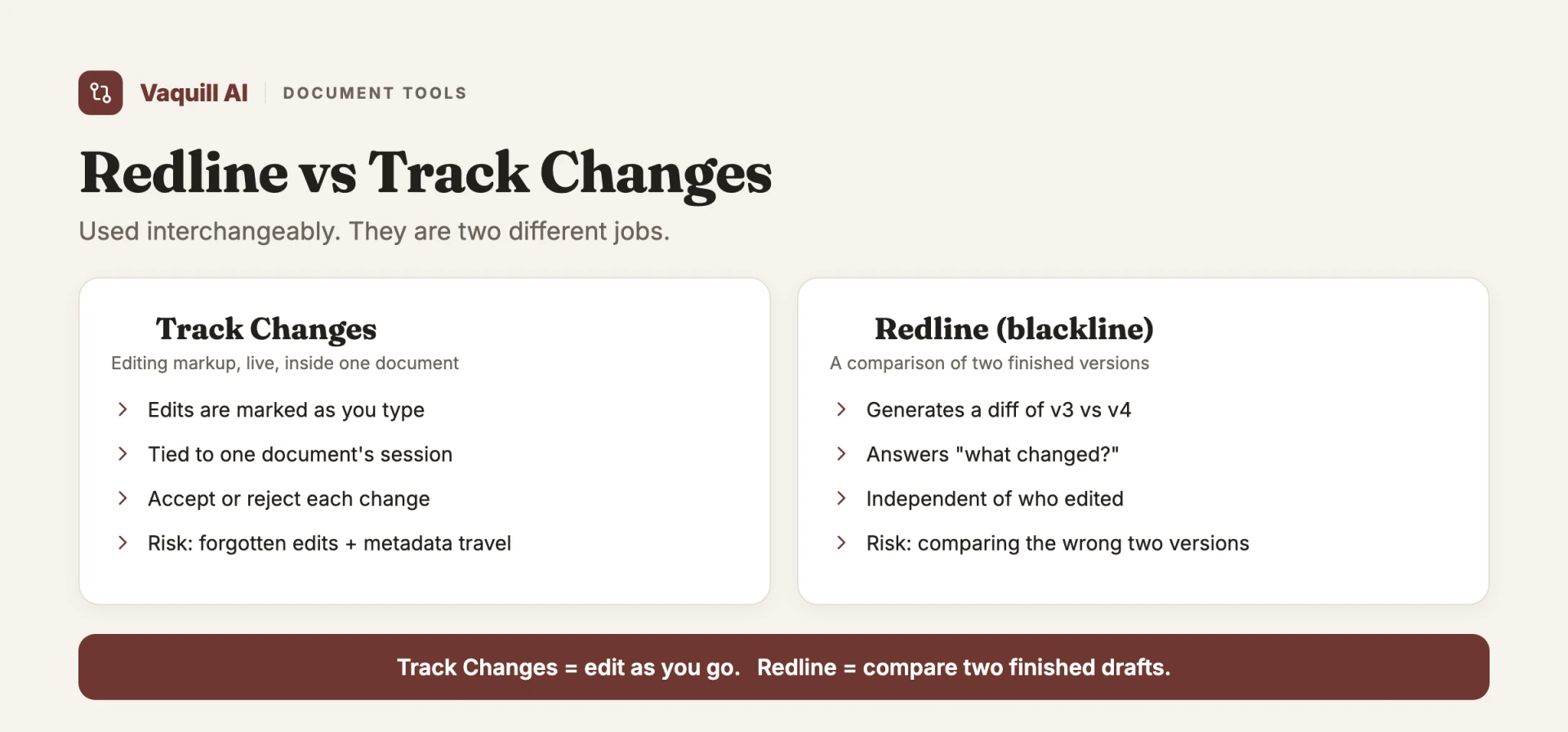
The mistake everyone makes: equating "redline" with Track Changes
Ask ten lawyers to "send a redline" and most will reach for Track Changes. That instinct is the root of more problems than any single clause ever causes.
Track Changes is an editing log. It records the insertions and deletions that one person made while the feature was on. That is useful, but it has a fatal assumption baked in: that the feature was on for every change, and that the log is complete and honest.
Neither is guaranteed. Anyone can toggle Track Changes off, make a change, and toggle it back on. The edit lands silently.
The other side accepts the visible markup, assumes that is the whole story, and ships a contract with an untracked change living in it.
Document comparison solves a different problem. It ignores who tracked what and instead diffs two final files against each other: this version versus that version, character by character.
The output is the actual delta between the documents. If a clause moved without anyone tracking it, comparison catches it. Track Changes never would have.
DocJuris cataloged the predictable failure modes in their well-known writeup, "Six Problems with Redlining Contracts in Word," and they map exactly to what you see in the wild: Track Changes gets toggled off and edits go invisible, accepting changes wrecks auto-numbering and cross-references, and multi-party rounds pile redlines on top of redlines until nobody can tell which version is authoritative.
None of those are clause-judgment failures. They are mechanics.
So the first rule is simple. Do not trust the incoming markup as ground truth. Compare the documents.
Redline vs blackline: the words people mix up
Two terms cause half the confusion in these conversations, so settle them first.
- Redline usually means a Word file that still has Track Changes embedded, so the recipient can accept or reject each edit. The markup metadata travels with the file.
- Blackline usually means a clean comparison document that shows the differences visually (underlines for inserts, strikethroughs for deletes) but does not carry live Track Changes metadata. A Compare run produces it; an editing session does not.
DocuSign's "Blackline vs. Redline" explainer draws the same line: a blackline compares two versions and shows what differs without dragging the track-changes metadata along. When someone asks for a "clean redline," they almost always want a blackline: the visual diff, none of the baggage.
Step by step: comparing two documents the right way
Here is the process that holds up under pressure, whether you are in Word, a dedicated comparison engine, or an AI suite.
1. Lock down your two source files
You need two clean inputs: the version you sent (or the last agreed version) and the version that came back. Save them as distinct files with unambiguous names. "MSA_v3_clean.docx" and "MSA_v4_fromCounsel.docx" beats "draft" and "draft (2)" every time.
Before you compare, accept all existing tracked changes in each file so you are diffing two finished documents, not two logs of half-finished edits. This single habit removes most of the comparison noise people blame on the tool.
2. Run a real comparison, not a glance
In Word: Review, then Compare, then Compare again, original document on the left, revised on the right. The output is a new document showing every difference as markup.
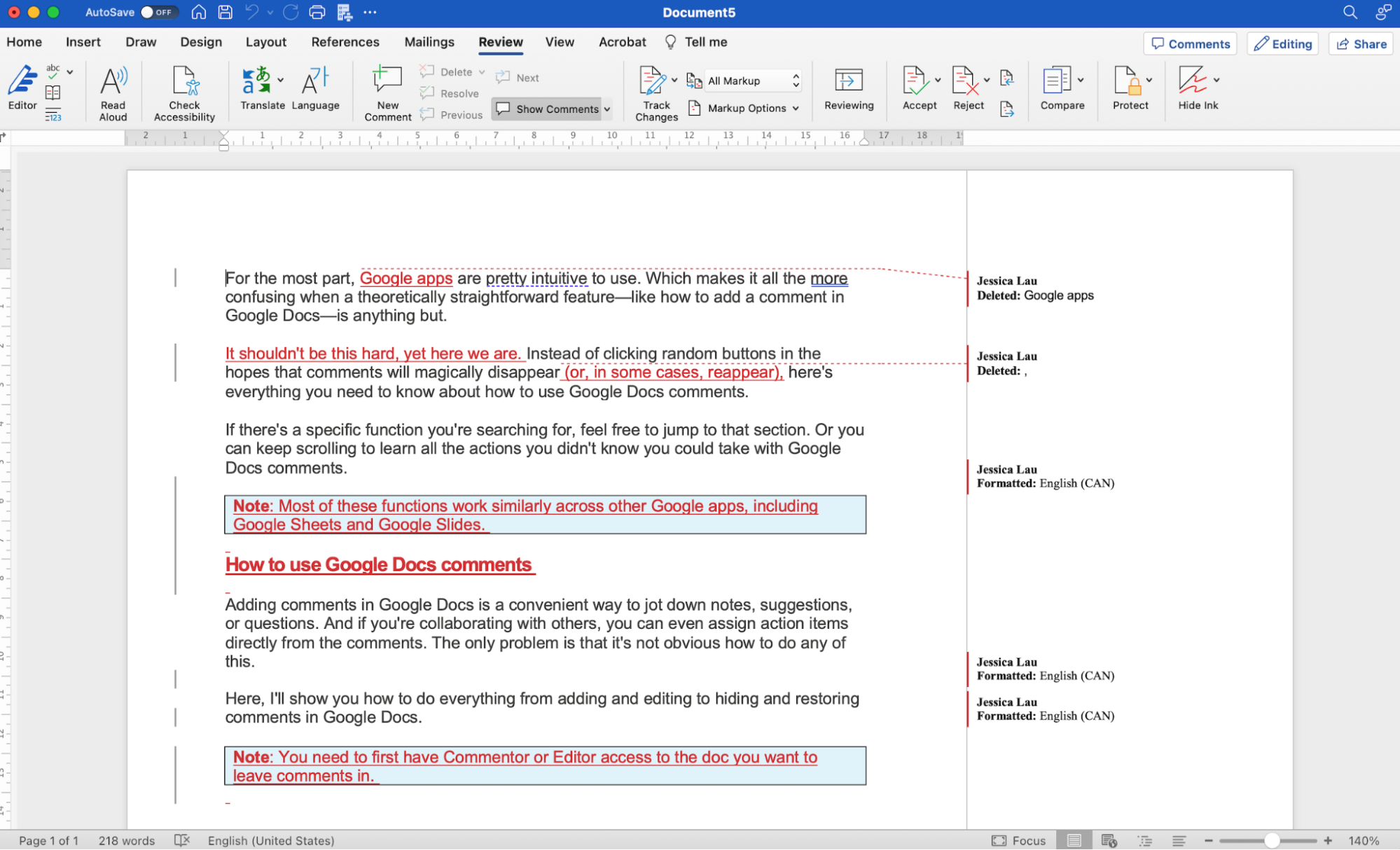
Read that output in the right view. Word's Review tab offers four display modes, and only one shows you the full picture: All Markup renders every insertion underlined and every deletion struck through inline (the classic blackline view), Simple Markup hides the detail behind a change bar in the left margin, No Markup shows the clean final text, and Original shows the pre-edit version. Review in All Markup. Simple Markup is where a change you never actually saw gets silently accepted.
Be aware of what Word does badly here. Its comparison engine over-reports. Change one word in a sentence and Word will frequently flag the entire paragraph as deleted and reinserted.
Attorney at Work's "Compare Documents in Word" and Ken Adams's "Document-Comparison Etiquette" on Adams on Contract Drafting both make the same point that pushes serious drafters elsewhere: the noise gets bad enough that you lose the signal.
When a 60-page agreement comes back with what looks like 400 changes and 380 of them are formatting artifacts, you stop reading carefully. That is exactly when a real substantive change slips through.
Dedicated comparison tools (Litera Compare, the old Workshare lineage, and the comparison engines now baked into AI contract platforms) do character-level diffing that keeps the markup tight. If you compare documents for a living, the upgrade pays for itself the first time it surfaces a moved cross-reference that Word would have buried.
3. Read the diff as a negotiator, not a proofreader
Now read the comparison output looking for substance. Definitions that quietly changed scope. A liability cap that moved. An indemnity that flipped from mutual to one-sided. A "shall" that became a "may." Auto-renewal windows. Governing law.
The comparison tells you what changed; your judgment tells you what matters.
Here is what that looks like on a real clause. Say your last sent version read:
Before: "Vendor's aggregate liability under this Agreement shall not exceed the fees paid in the twelve (12) months preceding the claim."
The redline comes back as:
After: "Vendor's aggregate liability under this Agreement shall not exceed the fees paid in the thirty-six (36) months preceding the claim, except for liability arising from Vendor's gross negligence."
A clean comparison flags two deltas: the cap window moved from 12 to 36 months (a 3x exposure swing), and a carve-out was added. The carve-out reads like it helps you, but it narrows the cap to only gross negligence, which means ordinary negligence is now capped lower in relative terms. The diff surfaced both. Which one you fight over is the lawyering. A Track Changes file would show this only if the other side tracked it. A comparison shows it either way.
This is where the AI layer earns its keep, and where you should keep your skepticism on. Reported adoption is real (one 2025 roundup from Dioptra put AI contract analysis usage around 31% of legal departments, and an existing piece on this site cites 58% in-house adoption and JPMorgan's reported 360,000 hours saved), and vendors advertise 90%-plus flagging accuracy.
Treat those numbers as vendor-sourced, because they are. AI is excellent at surfacing "here are the 14 substantive deltas and why each one matters." It is not a substitute for a lawyer deciding whether delta number 9 is acceptable.
The same verify-everything discipline that applies to AI legal research applies here, and the Mata v. Avianca sanctions are the permanent reminder of what happens when people skip it.
4. Make your edits, then decide what the other side actually sees
Once you have marked up the returned draft with your own changes, you have a choice that most people make on autopilot: send back a Track Changes file, or send a generated comparison.
For a clean negotiating round, a freshly generated document comparison (your accepted-and-edited version against the last shared version) is almost always cleaner than a Track Changes file that has accumulated three rounds of cruft. It shows the true delta and nothing else.
The document comparison tools, and where each fits
Four kinds of tool produce a redline. They are not interchangeable.
| Tool | How it diffs | Clean export | Best for |
|---|---|---|---|
| Word Compare (Review, Compare) | Built-in compare; over-reports formatting changes on dense files | Manual: accept/reject, delete comments, Inspect Document, save or PDF | Quick two-file checks when you do not have a dedicated tool |
| Litera Compare | Character-level legal diffing across text, tables, and images | Exports a clean redline or DOCX with or without tracked changes | Large firms; Litera says it is trusted across the legal industry (Litera, 2026) |
| Draftable Legal | Proprietary comparison engine; Word, PDF, and scanned files | Export as PDF, Word with or without tracked changes, plus metadata cleaning (Draftable, 2026) | Smaller teams wanting precise compares without heavy training |
| AI contract platforms | Compare engine plus a substance layer that explains each delta | Native DOCX with real Word Track Changes, ready to scrub | Teams that want the diff and a first-pass read of what each change means |
The split that matters: Word and the dedicated engines (Litera, Draftable, the old Workshare lineage) tell you precisely what changed. The AI layer adds a read on why each change matters, which is the slow part of a redline. For a deeper field-by-field breakdown, see the best legal redline software for 2026 and the best AI tools for comparing document versions.
The other half of "clean": metadata
Here is the part that ends careers, or at least negotiations.
When you save a .docx, you are not just saving text. You are saving tracked changes (even ones marked as resolved), comments, author names, your firm's template properties, and in some cases the edit history.
All of it travels inside the file. The recipient can open the document properties, or just turn markup back on, and read things you never meant to share.
The ABA addressed this directly in Formal Opinion 06-442, which holds that sending counsel has a duty to take reasonable care to scrub metadata before transmitting a document, and (the part that should make you careful) that under the Model Rules there is generally no prohibition on receiving counsel reviewing and using metadata they find.
Read that twice. The other side is often free to mine what you leak. The burden is on you to not leak it.
So "clean" cannot mean only "the markup looks tidy." It has to mean metadata-clean too.
The cleanup sequence:
- Accept or reject every tracked change so there is no residual markup carrying intent.
- Delete all comments. A resolved comment is still in the file. Delete, do not resolve.
- Run Inspect Document (File, Info, Check for Issues, Inspect Document in Word) and remove document properties, personal information, comments, revisions, and hidden text. Do this on the final file, every time.
- Deliver a PDF when an editable file is not required. A flattened PDF of the redline carries no markup engine and no live metadata to mine. If the other side needs to edit, send the .docx, but only after inspection.
Clio's redlining guidance and most firm IT policies land in the same place: scrub before you send, and default to PDF for anything that does not need to be edited downstream.
This is also why where your documents are processed matters. If you are running comparisons through an AI tool, you should know how it handles your files, which is the whole point of understanding where your legal AI data actually goes before you upload a confidential draft into it.
Where redlines quietly break in multi-party rounds
Two-party, one-round comparison is the easy case. Real deals are not that.
By round four of a financing or a complex MSA, you have versions from your side, the counterparty, their lender's counsel, and maybe an escrow agent. Each saved a copy, each ran Track Changes (or did not), each renamed the file in a slightly different way.
Now someone asks the question that sinks afternoons: "Is the version we are signing actually the version everyone agreed to?"
This is the limit of pairwise comparison. Comparing two files at a time tells you the delta between those two files. It does not give you a view across the whole version history or across a stack of related documents at once.
When you are reconciling many versions, or extracting the same handful of terms across a dozen related agreements, you want a tabular view: governing law, liability cap, term, renewal, assignment, for every document, side by side. That grid is a different capability from a single pairwise redline, and it is the thing that turns "I think we are aligned" into "here is the proof."
Document Comparison handles the pairwise redline, and Document Matrix handles the many-document grid, which is the part single-document chat tools cannot do well.
The point is structural: know which problem you have. A redline is a two-document problem. Reconciling a deal is a many-document problem, and treating the second like the first is how teams sign the wrong version.
A quick note on governing-law and statute citations
One small thing that comes up constantly in redlines and gets fumbled just as often: when a clause cites a statute, verify the citation actually says what the drafter claims.
A limitation-of-liability clause that waves at consequential damages under the UCC, an arbitration clause referencing the wrong section, a compliance representation citing a regulation that was amended. These are easy to gloss over in a redline because they read like boilerplate.
If you need to confirm statutory text while reviewing, that is exactly the narrow thing a public statutes API scoped to U.S. Code, CFR, and 50-state codes is good for: confirming the section a contract leans on actually exists and says what the clause asserts. Not a substitute for judgment, just a faster way to check the cite.
The short version of doing this right
If you remember nothing else, remember the spine of it. Track Changes is not comparison. The dangerous edits are the untracked ones, and the only way to catch them is to diff two final documents against each other rather than trusting the markup someone handed you.
The dangerous leak is the metadata you forgot to strip, and the only way to prevent it is to make accept-reject, delete-comments, inspect-document, deliver-PDF a reflex rather than an afterthought.
A clean redline is a deliverable. Build the process so that "clean" is the only kind your team ships. The clause judgment is the lawyering. The clean export is the craft.
If you want to go deeper on the review side, the lawyer's guide to AI contract review and the NDA triage evaluation piece cover what to look for and how to vet the tools that look for it. And if you are evaluating CLM platforms to manage all of this at scale, the 2026 CLM comparison is the starting point.
For more on pairwise diffs and many-document grids, see Document Matrix vs Document Comparison.
FAQ
How do I compare two documents and create a redline?
Open both files, accept any existing tracked changes in each, then run a comparison. In Word: Review, Compare, Compare, pick the original on the left and the revised on the right. The output is a new document that marks every difference. Dedicated tools like Litera Compare and Draftable do the same diff with tighter, character-level markup on dense files.
How do I export a clean redline without leaking metadata?
Accept or reject every tracked change, delete all comments (resolved is not deleted), then run Inspect Document (File, Info, Check for Issues, Inspect Document) to strip document properties, revisions, and hidden text. Deliver a PDF unless the recipient genuinely needs an editable file. The ABA's Formal Opinion 06-442 holds that sending counsel must take reasonable care to scrub metadata before transmitting (ABA, 2006).
What is the difference between a redline and a blackline?
A redline usually means a Word file that still carries Track Changes, so the recipient can accept or reject each edit. A blackline is a clean comparison document that shows the visual differences but does not carry live Track Changes metadata. When someone asks for a clean redline, they normally want a blackline.
Is Word Compare good enough for legal redlines?
For a quick two-file check, yes. On long or heavily formatted documents Word's compare engine over-reports, flagging whole paragraphs as deleted and reinserted when one word changed, and that noise is where a real substantive edit slips past. Dedicated comparison tools keep the markup tight, which is why most firms that compare for a living move off Word.
Why does a document comparison catch changes that Track Changes misses?
Track Changes only records edits made while the feature was on, and anyone can toggle it off, edit, and toggle it back on so the change lands silently. A document comparison ignores who tracked what and diffs the two final files directly, so an untracked edit still shows up in the output.
Should I send a redline as a Word file or a PDF?
Default to PDF whenever the other side does not need to edit. A flattened PDF carries no markup engine and no live metadata to mine. Send a .docx only when the recipient must edit it, and only after you have run Inspect Document on the final file.
What is the difference between Simple Markup and All Markup in Word?
All Markup shows every insertion underlined and every deletion struck through inline, the full blackline view you want when reviewing a redline for substance. Simple Markup hides that detail behind a change bar in the left margin and displays the near-final text, which is easy to read but easy to over-trust. Review incoming changes in All Markup so nothing gets accepted that you never actually saw.
How do I compare more than two versions of a contract?
Pairwise comparison only tells you the delta between two files. For many versions or for the same terms across a stack of related agreements, use a tabular view (a document matrix) that lays governing law, liability cap, term, and renewal side by side for every document, which a single pairwise redline cannot do.
New legal AI guides, weekly.
Further Reading
Top 12 Legal Redline Software Tools (2026)
Read postHow to Build an NDA Playbook Your AI Can Actually Enforce
Read postLegal AI Workflows: How Law Firms Chain Multi-Step AI Tasks in 2026
Read postBulk Contract Review: How to Review Many Contracts at Once With a Document Matrix
Read postLegal Document Version Control: Which Platforms Track Versions
Read postRedline vs Track Changes: What Lawyers Actually Mean (and When to Use Each)
Read post
Product & Content
The US primary law data API: statutes, regulations, constitutions, court rules, executive orders and agency guidance across 53 US jurisdictions, each section cited and linked to its official source, via REST, MCP or SQL.