A few years back I watched two associates argue, with genuine heat, about whether the document they had just produced was a "redline" or a "blackline." One firm called it a redline. The other had spent three years at a shop that said blackline, and to him "redline" sounded like something a junior would say.
They were describing the exact same PDF. Nobody learned anything, and the partner waiting on the file did not care what either of them called it.
That argument repeats itself a thousand times a week across the profession, and it is the wrong argument. The real fight in "redline vs track changes" is not about vocabulary. It is about workflow.
The place where the workflow quietly fails: a comparison run against the wrong base version, or a "clean" file that still carries every tracked edit, comment, and author name you thought you had stripped out. That is the thing that can actually hurt a client. The word you use for the markup cannot.
Short answer: A redline is the marked-up document that shows what differs between two versions (insertions, deletions, moves). Track Changes is one Microsoft Word feature that records edits live so a redline can be produced and negotiated. The redline is the result; Track Changes is one way to make and work inside it. Use Track Changes to negotiate inside a live draft; run a fresh comparison to verify what actually changed in a version someone sent you.
TL;DR
- Redline and Track Changes are not rivals. A redline (also called a blackline, compare, diff, DeltaView, or ChangePro) is the output. Track Changes is one Word feature that produces an editable version of that output. They live at different layers.
- The naming is cultural, not technical. Whether your firm says redline or blackline signals where people trained, nothing more. iManage's Jack Shepherd, an ex-insolvency lawyer, lists "comparison, blackline, ChangePro, DeltaView, compare, diff, tracks" as names for the same thing.
- "Accept All Changes" does not clean a file. Tracked-changes history, comments, and author metadata can survive, and emailing an unscrubbed draft can hand opposing counsel your negotiating positions.
- The leak is an ethics problem, not just an embarrassment. ABA Formal Opinion 06-442 ties metadata to your Rule 1.6 confidentiality duty, and Federal Rule of Evidence 502(b) only protects an inadvertent disclosure if you took "reasonable steps."
- The decision rule: use Track Changes for live, editable negotiation. Use a freshly generated comparison to verify what actually changed between two versions, especially a version someone else sent you.
Opposing counsel emails you a clean revised draft. What does the post say you should do?
Part of our document tools, redline, and matrix guide series.
For related document-tools coverage, see How to Compare Documents and Export Clean Redlines (Step-by-Step) and Best Legal Redline Software in 2026: 7 Tools for Comparing and Marking Up Documents, and legal AI inside Microsoft Word: contract review and redlining in a Word add-in.
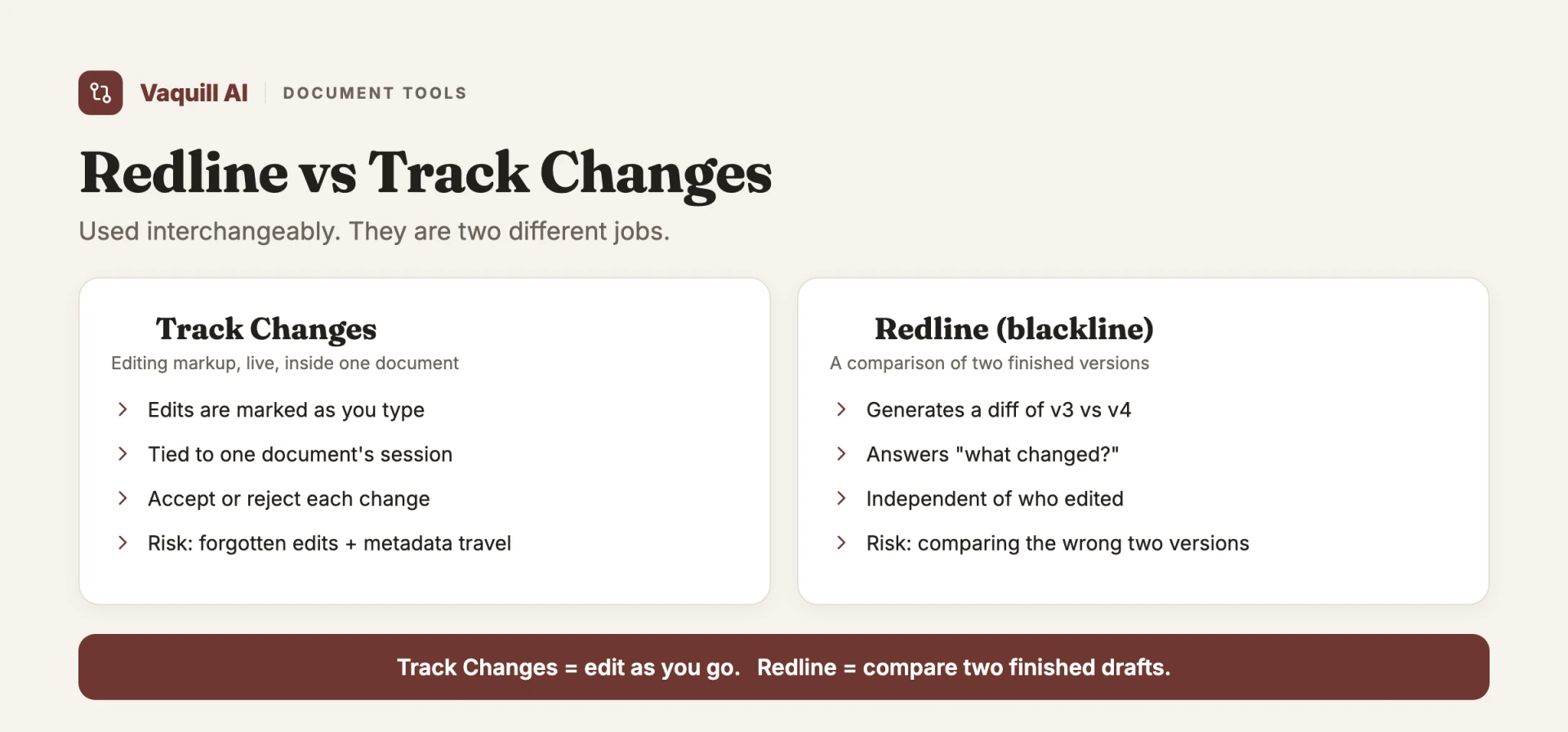
Track Changes is editing as you go; a redline compares two finished drafts.
The terminology trap, and why it persists
Start with the part that wastes the most oxygen. People treat "redline" and "track changes" as if they were two competing deliverables, like choosing between a Word doc and a PDF. They are not. They sit at different layers of the same task.
A redline is a visual representation of the differences between two documents. Insertions, deletions, moves. It is the output. The name is older than the software: lawyers used to mark drafts with a red pen, and the red survived into the screen even though the tools changed.
Here is what one line of a redline actually looks like, so the abstraction is concrete. Say the other side returned a clause and you compare it against the version you sent:
Vendor's aggregate liability shall not exceed fees paid in the prior
3612 months.
The struck-through 36 is what your version said; the bolded 12 is their inserted change. A redline is just that, scaled to a whole document: every difference shown in place so a reader can see exactly what moved. That is true whether the markup came from Track Changes, from a Word comparison, or from a standalone diff engine. The format is the same; only how it was generated differs.
The function that produces it has collected an absurd number of names over the decades, partly because the dominant tools kept rebranding. Jack Shepherd, who practiced insolvency law before becoming a legal practice lead at iManage, put it plainly in his writing on how lawyers actually use these documents: a redline "is known by several other names: a comparison, blackline, ChangePro, DeltaView, compare, diff, tracks etc." (see his Medium piece).
DeltaView and ChangePro are literally product names that became generic verbs inside certain firms, the way people say "Xerox" for photocopy.
One nuance is worth flagging, because some readers were taught a real distinction rather than a regional one. A few vendors draw a line between a redline and a blackline: in their usage a redline shows the whole journey of edits (often with comments and author attribution), while a blackline shows only the net differences between two versions, stripped of the editing metadata. DocuSign frames it as "redline shows the entire journey of changes, while blackline summarizes the difference between certain versions" (Blackline vs. Redline, DocuSign). That distinction is coherent and some firms hold to it. Most do not. In day-to-day practice the two words point at the same artifact, and the safer habit is to confirm what your counterpart means rather than assume.
Track Changes is something narrower and more specific. It is a Microsoft Word feature that records every edit as you type, tagged with author and timestamp, so a reader can accept or reject each one.
The property that matters: a Track Changes document is live. The edits are still negotiable, sitting inside an editable file.
So the honest relationship looks like this:
- Track Changes is a mode you work in. It produces an editable document full of pending edits.
- A comparison (the dedicated "compare two documents" function in Word, or a standalone engine like the ones built into iManage, Litera, or a modern legal AI workbench) takes two finished files and generates a redline showing what differs.
Both produce something that looks like a redline on screen: colored insertions, struck-through deletions. That visual similarity is exactly why people conflate them.
But they answer different questions. Track Changes answers "what am I proposing as I draft?" A generated comparison answers "what is actually different between this version and that one?" Those are not the same question, and treating them as interchangeable is where the trouble starts.
When to use each (the part nobody writes down)
| Track Changes | Generated comparison | |
|---|---|---|
| Layer | Live editing mode (Word) | Output of a diff engine |
| File state | Editable, full of pending edits | Read-only markup of two finished files |
| Question it answers | "What am I proposing as I draft?" | "What is actually different between v3 and v4?" |
| Trust profile | You wrote it, you trust it | You wrote it AGAINST what someone sent you |
| When to use | Negotiating inside a live draft | Verifying a received clean draft or redline |
| Biggest failure mode | Metadata + author residue ships in the file | Comparing against the wrong base version |
Here is the working rule I would give a new associate, the one that no style guide ever bothers to state.
Use Track Changes when the document is alive and you are negotiating inside it. You are passing a draft back and forth with the other side, each round adding edits the other party needs to see, weigh, and accept or reject. The whole point is that the changes stay editable and attributed. Turning Track Changes on is how you keep the negotiation legible. This is the natural home of the live, collaborative draft.
Use a generated comparison when you need to verify what changed, and you do not trust the markup you were handed. This is the move that separates careful practitioners from sloppy ones.
Opposing counsel sends you a "clean" revised draft, or a redline they generated themselves. You do not edit their redline. You take their clean version and your last version, and you run your own comparison.
Why? Because their redline shows you what they say they changed. Your own comparison shows you what they actually changed. Those diverge more often than anyone likes to admit, sometimes through carelessness, occasionally not.
Shepherd's list of how lawyers really use redlines is instructive here, because most of the uses are verification, not drafting: checking that an engrossment matches the agreed final, confirming a counterparty's "minor tweaks" really were minor, reconstructing what happened across a chaotic negotiation. None of that is Track Changes work. All of it is comparison work.
The mistake is using the wrong one for the job. People edit directly inside a comparison output (which was never meant to be edited and often mangles when you do). Or they trust a received redline as gospel and never run their own.
The terminology argument hides this, because if you think redline and Track Changes are the same thing, you never notice you picked the wrong tool.
The dangerous part: what survives in the file
Now the part that actually keeps people up at night, or should.
The single most common belief I hear, and it is wrong, is that "Accept All Changes" or toggling Track Changes off produces a clean document. It does not. Turning off Track Changes stops recording new edits. It does not scrub what is already baked into the file.
Word retains a remarkable amount of residue: prior revision history, comments, author names, edit timestamps, and other metadata that the casual reader never sees but that anyone who knows where to look can pull out in seconds.
The practitioner literature has warned about this for years. Legal Office Guru has a walkthrough on how Track Changes can broadcast confidential data, and the North Carolina Bar Association's piece "Exposed! What Lawyers Need to Know About Metadata" covers the same ground from the ethics side.
The recurring failure mode is mundane and brutal: you negotiate a deal, you make internal edits showing your fallback positions and your real bottom line, you "accept all changes," and you email the file. The other side opens the metadata and reads your hand.
This is not a hypothetical embarrassment. It maps directly onto your professional obligations.
- ABA Formal Opinion 06-442 (2006) addressed metadata head-on. It concluded the Model Rules contain no blanket prohibition on a receiving lawyer reviewing embedded metadata, which is the uncomfortable half. The other half is that Rule 1.6 requires the sending lawyer to exercise reasonable care to avoid disclosing metadata that contains client confidences. The duty to scrub is not a best practice. It is competence.
- Federal Rule of Evidence 502(b) is the litigation backstop, and it is unforgiving on this exact point. An inadvertent disclosure of privileged material does not waive privilege only if the holder "took reasonable steps to prevent disclosure" (read the text of Rule 502). Emailing a document fat with unscrubbed tracked changes and metadata is close to a textbook example of failing to take reasonable steps. Rule 502(d) lets parties get a court order making clawback agreements binding, which helps, but you do not want to be litigating whether your scrubbing was reasonable in the first place.
So the stakes of the workflow mistake are not "looks unprofessional." They are "arguably waived privilege" and "arguably breached Rule 1.6." That is the conversation lawyers should be having, instead of whether to say blackline.
If you are also routing documents through an AI tool that compares or marks them up, the same instinct applies one layer out: know where the file goes and what is retained.
We wrote a whole piece on where your legal AI data actually goes, and the metadata question is just the local-file version of the same discipline. ABA Formal Opinion 512 (2024) extends the competence-and-confidentiality duty squarely to generative-AI-assisted work, so "the tool handled it" is not an answer.
The other quiet failure: comparing the wrong versions
Even practitioners who scrub religiously trip on the second mechanical mistake: generating a comparison against the wrong base.
Picture the version sprawl on any real deal. There is v3 that you sent Tuesday, v3-clean that the paralegal saved, v3-JS-comments with one partner's margin notes, v4 that came back from the other side, and v4-final-FINAL that someone renamed in a panic.
Now you run a comparison. If you pick v3-JS-comments as your base instead of the v3 you actually sent, your redline shows edits that were never on the table and hides ones that were. You have produced a confident, colorful, completely misleading document.
This is the failure that the terminology debate completely obscures, and it is the one I have seen cause real downstream pain. The fix is process, not vocabulary:
- Name versions so the base is never ambiguous. Date plus a clean/marked indicator beats "FINAL" every time, because "FINAL" is a lie roughly forty percent of the time.
- Always generate your own comparison against the file you actually sent, not against whatever happens to be open.
- Treat a received redline as a claim, not a fact. Verify it against your own version before you rely on it.
A two-document compare is the workhorse for this, and it is what most redline tools are built to do well: feed in two versions, get a trustworthy diff.
Where the two-version frame runs out of road is when you need to compare many documents at once, say twenty NDAs against a standard, looking for which ones deviate on indemnity or governing law. That is a different shape of problem, closer to extraction across a set than diffing a pair, which is why something like a document matrix exists alongside the simple compare rather than as a fancier version of it. Knowing which problem you have is half the battle.
So how should you talk about it?
Call it whatever your firm calls it. If you trained somewhere that says blackline, say blackline. If your client says redline, say redline. The word carries cultural information about where people learned the craft, and that is fine. It carries no technical information worth fighting over.
What you should be precise about is the verb. "I'll turn on Track Changes and send you my edits" means something specific: a live, editable, attributed draft going back into a negotiation. "I'll run a comparison against the version we sent" means something else: verification of what actually changed, generated fresh, trusted only after you produced it yourself.
When people use those two phrases interchangeably, that is your signal that someone is about to use the wrong tool for the job.
The profession spent two decades arguing about a noun. The thing that actually leaks confidences, waives privilege, and ships misleading markup is a verb problem and a process problem. Get the workflow right and you can call the output anything you like.
FAQ
Is redlining the same as track changes? Not quite. Redlining is the act of marking up changes, and a redline is the marked-up document that results. Track Changes is one Microsoft Word feature that produces that markup live as you edit. You can also produce a redline by running a document comparison, which never touches Track Changes. So Track Changes is one way to redline, not the whole of it.
What is a redline? A redline is a document that shows the differences between two versions: insertions, deletions, and moved text, usually with deletions struck through and additions underlined or colored. The name comes from the old habit of marking drafts with a red pen. It is the output you read to see what changed.
What is the difference between redlining and track changes? Track Changes records edits as you type, tagged with author and timestamp, inside a still-editable file. A redline is the visual result of comparing two documents and can be generated without Track Changes at all. Track Changes answers "what am I proposing as I draft?" A generated comparison answers "what is actually different between these two versions?"
What is a blackline, and how is it different from a redline? For most lawyers blackline and redline are the same thing, just different regional vocabulary. Some vendors do draw a line: a redline shows the full editing journey, while a blackline shows only the net differences between two versions without the editing metadata. Because usage varies, confirm what your counterpart means rather than assume.
Does Accept All Changes remove tracked changes from a file? It removes the visible markup, but it does not clean the file. Prior revision history, comments, author names, and timestamps can survive. Run Word's Document Inspector (File then Info then Check for Issues) or a dedicated metadata cleaner before any external send.
When should I use Track Changes versus a comparison? Use Track Changes when the document is live and you are negotiating inside it, so edits stay editable and attributed. Use a freshly generated comparison when you need to verify what changed, especially in a clean draft or redline that someone else sent you, because their markup shows what they say they changed and your comparison shows what they actually changed.
Why do redlines sometimes disappear or look wrong? The most common cause is comparing against the wrong base version, so the markup reflects edits that were never on the table. Loose version naming like "FINAL" makes this worse. Name versions with a date plus a clean or marked indicator, and always compare against the exact file you sent.
If you want to go from concepts to picking actual software, we ranked the engines and their pricing in our guide to the best legal redline software for 2026, and walked through producing a clean output in how to compare documents and export clean redlines.
This post was about understanding the distinction. Those are about acting on it. For the markup-against-a-standard workflow, our guide to AI contract review covers reviewing edits against a playbook rather than against a single prior version.
Both layers live in one place in Vaquill AI: AI redlining that writes back into native Word track changes for the live-negotiation side, and a fresh document comparison for verifying what actually changed against the version you sent.
New legal AI guides, weekly.
Further Reading
Top 12 Legal Redline Software Tools (2026)
Read postHow to Build an NDA Playbook Your AI Can Actually Enforce
Read postLegal AI Workflows: How Law Firms Chain Multi-Step AI Tasks in 2026
Read postHow to Compare Documents and Export Clean Redlines (Step-by-Step)
Read postBulk Contract Review: How to Review Many Contracts at Once With a Document Matrix
Read postLegal Document Version Control: Which Platforms Track Versions
Read post
Co-Founder & CEO · Attorney
Arshita leads product and strategy at Vaquill AI, the US primary law data API. As an attorney, she decides which law we carry, how each section is sourced and cited, and what legal AI and compliance teams need from the data.