You redline a contract in Google Docs by switching the document to Suggesting mode, typing your edits so they show up as colored insertions and strikethrough deletions, then letting the other party accept or reject each one. To check a returned draft, use Tools > Compare documents. To hand a marked-up file to outside counsel, download it as Word so your suggestions become tracked changes.
That covers the mechanics. The harder truth is where Google Docs fits in a real negotiation, and where it quietly stops being the right tool.
TL;DR
- Turn on Suggesting mode from the Editing dropdown at the top right. Pick Suggesting. Every edit now shows as a colored insertion or strikethrough, attributed to you, with a card in the margin.
- Accept or reject each suggestion from its margin card, or do them in bulk under Tools > Review suggested edits (Accept all / Reject all).
- Compare two drafts with Tools > Compare documents. Google generates a new file showing the differences as suggested edits, which is the verification step, not the drafting step.
- Version history (click Last edit at the top right, or File > Version history) lets you name checkpoints, see who changed what, and restore an earlier draft.
- Export to Word with File > Download > Microsoft Word (.docx). Active suggestions convert to Word tracked changes, but format drift and any leftover comments are on you to check.
- The real limit: Docs is a single-environment tool. The moment a counterparty sends a Word file, redlining becomes a cross-format, accept/reject negotiation, and that is Word's home turf, not Docs'.
According to the post, when does Google Docs redlining break down?
For the bigger-picture distinction, see redline vs track changes: what lawyers actually mean. This post is the Google-Docs-specific how-to.
Step 1: Turn on Suggesting mode
Google Docs has three editing states, and the redlining one is not the default.
Open the contract. Look at the top right for a pencil icon with a dropdown, labeled Editing. Click it and pick Suggesting. (The third option, Viewing, is read-only.) The cursor now carries a small marker, which tells you edits will land as suggestions instead of silent changes.
Once you are in Suggesting mode, just type. Delete a number and it shows as strikethrough. Add a clause and it shows in a contrasting color. Each edit gets a card in the right margin tagged with your name. To explain a change, click the suggestion and add a comment, then click Reply.
Here is what one line looks like in practice. Say the draft caps liability and you want to tighten it:
Vendor's aggregate liability shall not exceed fees paid in the prior
3612 months.
The struck 36 is the original; the bolded 12 is your suggested insertion. Scale that across the document and you have a redline that anyone can read and respond to.
Step 2: Accept or reject suggestions
Every suggestion is a yes-or-no decision, and Docs gives you two ways to make it.
For one edit at a time, click its margin card and choose Accept (checkmark) or Reject (X). The text settles into final form, the card disappears, and the next round starts clean.
For a whole file, go to Tools > Review suggested edits. A panel opens at the top right. You can step through each edit, or use the dropdown to preview the document with all changes applied or removed, then click Accept all or Reject all.
Step 3: Compare two versions
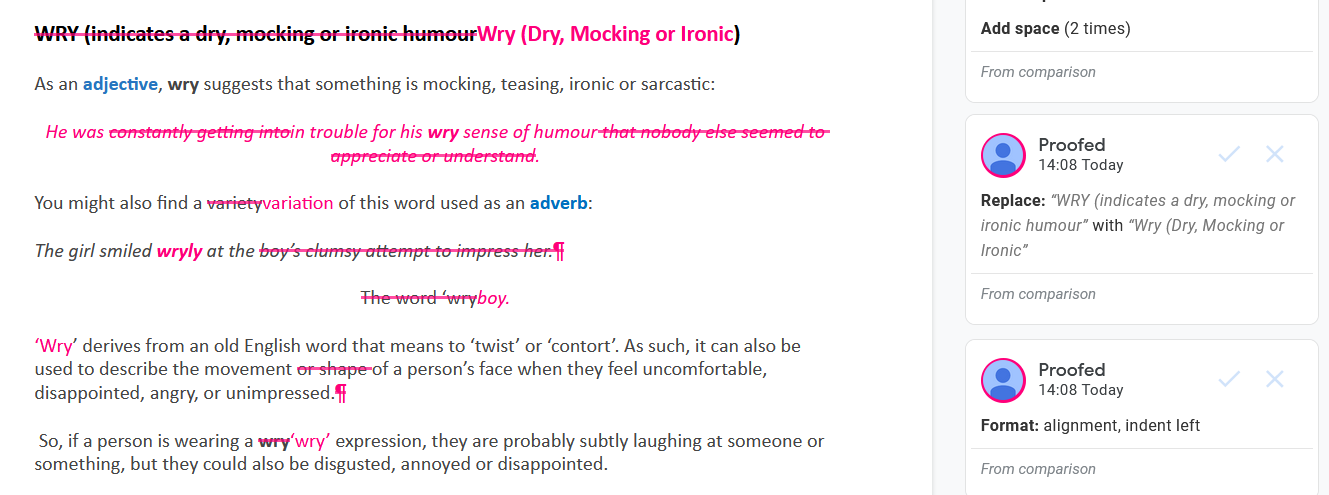
Suggesting mode is for edits you make live. Compare documents is for checking a version someone hands back to you.
Open one of the two files. Go to Tools > Compare documents. Pick the second file from your Drive as the comparison document. There is an attribute differences to field where you type a name (often the counterparty), which labels the resulting suggestions. Click Compare.
Google builds a brand-new document where every difference between the two files appears as a suggested edit. You are not editing either original. You are reading a generated diff.
This matters because a redline the other side sends shows what they say they changed. Your own comparison shows what they actually changed. Those two things diverge more often than anyone admits. For the full workflow, including how to get a clean output without leaking metadata, see how to compare documents and export clean redlines.
Step 4: Use version history as your safety net
Suggestions are the live layer. Version history is the audit trail underneath.
Click Last edit at the top right (or File > Version history > See version history). A panel shows every saved state, who edited it, and when. Click any version to view it. Click Restore this version to roll the document back.
Two habits make this useful instead of just present. First, click the three-dot menu next to a meaningful state and choose Name this version, so "Sent to counterparty 6-25" beats scrolling through dozens of timestamps. You get up to 40 named versions per document. Second, treat version history as proof of what you sent, which is handy when a deal gets contested later.
Step 5: Export a clean Word redline for the other side
Most counterparties live in Microsoft Word. So at some point you have to leave Docs.
Go to File > Download > Microsoft Word (.docx). Google converts your active suggestions into Word tracked changes and your comments into Word comments. In theory the other side opens a normal redlined .docx and never knows it started in Docs.
In practice, two things bite. Formatting can drift on conversion, so numbered clauses, defined-term styling, or cross-references may shift. Always open the downloaded file in Word and eyeball it before sending. And anything already accepted or rejected is baked in, so the export reflects the current state, not the full history.
When Google Docs works, and when it does not
Docs is genuinely good at one half of redlining and weak at the other.
It works well for internal drafting and collaboration. Two people on the same legal team, building a template, marking up a first draft, leaving each other suggestions in real time: that is Suggesting mode at its best. Everyone sees the same live file, no version-by-email chaos, no licensing cost. For a contract that never leaves your organization, Docs may be all you need.
It breaks down the moment a counterparty sends a Word file. This is the part most guides skip. Legal redlining between two sides is a cross-format, accept/reject negotiation. One party uses Word, another uses Docs, edits bounce back and forth, and each round has to survive a format conversion. Docs is a single-environment tool. It assumes everyone is inside the same Google document, which is exactly the assumption an outside negotiation violates.
So the honest split is this. Use Google Docs for internal drafting. Switch to Word-style track changes for outside negotiation. Fighting that by routing every Word file through Docs and back creates more conversion risk than it removes.
Pitfalls to watch
These are the failures that show up on real deals, not in feature lists.
- The other side uses Word, and you keep round-tripping. Each Docs-to-Word-to-Docs hop is a chance for tracked changes to mangle or formatting to shift. After one or two rounds, nobody is sure the markup is faithful.
- Suggestions can be lost on export. Conversion is good, not perfect. Complex formatting, nested suggestions, or unusual styles may not survive cleanly. Verify the .docx in Word, every time.
- No clean third-party compare. Google's Compare documents works on two Google Docs files. Feed it a messy Word file from outside and the diff quality suffers. A dedicated comparison engine handles cross-format files more reliably.
- Editor access exposes your history. Give the other side Editor rights and they can read your version history and internal comments. Default to Commenter for outsiders.
- Accept all is not a clean file. Accepting changes settles the text but does not remove comments, prior authorship, or metadata. Inspect before sending.
For a tool-by-tool look at the dedicated engines, see the best legal redline software roundup. If your source document is a PDF rather than a Word or Docs file, that is a different flow, covered in how to redline a PDF.
Verdict
Google Docs is a capable redlining tool for one job: internal, single-environment collaboration where everyone works in the same live file. Suggesting mode, Compare documents, and version history together give a small legal team a real workflow at no extra cost.
It is the wrong center of gravity for outside negotiation. The instant a counterparty sends Word, you are in a cross-format, accept/reject fight, and Word-style track changes is the native language of that fight. Draft internally in Docs if you like. Negotiate externally in Word, or in a tool built to move clean redlines across both.
That cross-format gap is the one Vaquill AI is built to close: AI redlining that writes back into native Word track changes for live negotiation, plus a fresh comparison to verify what actually changed, so you are not hand-checking every round-trip. You can also pull standard fallback language from a clause library instead of retyping it. For reviewing edits against a playbook rather than a single prior draft, see our guide to AI contract review.
Last updated: June 2026. Google Docs menu names and steps checked June 2026; Google updates its interface periodically, so labels may shift.
FAQ
How do I turn on track changes in Google Docs? Google Docs does not have a feature called "track changes." The equivalent is Suggesting mode. Click the Editing dropdown at the top right and choose Suggesting. Your edits then appear as colored insertions and strikethrough deletions that the other party can accept or reject, the same way Word's tracked changes work.
How do I accept or reject suggestions in Google Docs? For a single edit, click its card in the right margin and choose Accept (checkmark) or Reject (X). For the whole document, go to Tools > Review suggested edits, then use the panel to step through each change or click Accept all or Reject all. On a contract from the other side, walk each one rather than using Accept all.
Does Google Docs have a compare documents feature? Yes. Go to Tools > Compare documents, pick the second file from your Drive, type a label in the "attribute differences to" field, and click Compare. Google generates a new document showing the differences as suggested edits. It works best on two Google Docs files; cross-format comparison against a Word file is less reliable.
What happens to my suggestions when I export to Word? Use File > Download > Microsoft Word (.docx). Active suggestions convert to Word tracked changes and comments convert to Word comments. Conversion is good but not perfect, so formatting can drift and complex suggestions can occasionally be lost. Open the .docx in Word and check it before sending.
Is Google Docs good enough for redlining legal contracts? For internal drafting and collaboration inside one organization, yes. For negotiating with an outside party who uses Word, it is shaky, because each round-trip risks conversion errors and Docs assumes everyone shares the same live file. The practical rule: draft internally in Docs, negotiate externally in Word-style track changes.
Can the other side see my version history or comments? If you give them Editor access, yes. They can open your full version history, including earlier drafts and internal comments. To limit that, share with Commenter access instead, which lets them suggest and comment but not view or alter your editing history the way an Editor can.
Does accepting all changes give me a clean file? No. Accepting changes settles the visible text, but comments, prior author names, and metadata can remain in the file. Before any external send, run Word's Document Inspector after export, or use a metadata cleaner, so you do not leak internal notes or negotiating positions.
How is Compare documents different from Suggesting mode? Suggesting mode records edits you make live in one document. Compare documents takes two finished files and generates a diff showing what differs between them. Use Suggesting mode to negotiate inside a draft, and Compare documents to verify what actually changed in a version someone sent back to you.
New legal AI guides, weekly.
Further Reading
How to Redline a Contract in Microsoft Word
Read postHow to Redline a PDF Contract
Read postContract Renewal Tracking: How to Never Miss a Deadline
Read postContract Turnaround Time: How to Measure and Cut It
Read postHow to Draft a Contract: A Step-by-Step Guide
Read postMicrosoft Copilot for Lawyers: What It Can and Cannot Do
Read post
Co-Founder & CEO · Attorney
Arshita leads product and strategy at Vaquill, building the legal AI suite that solo, small-firm, and in-house US lawyers use to run a matter end to end.