

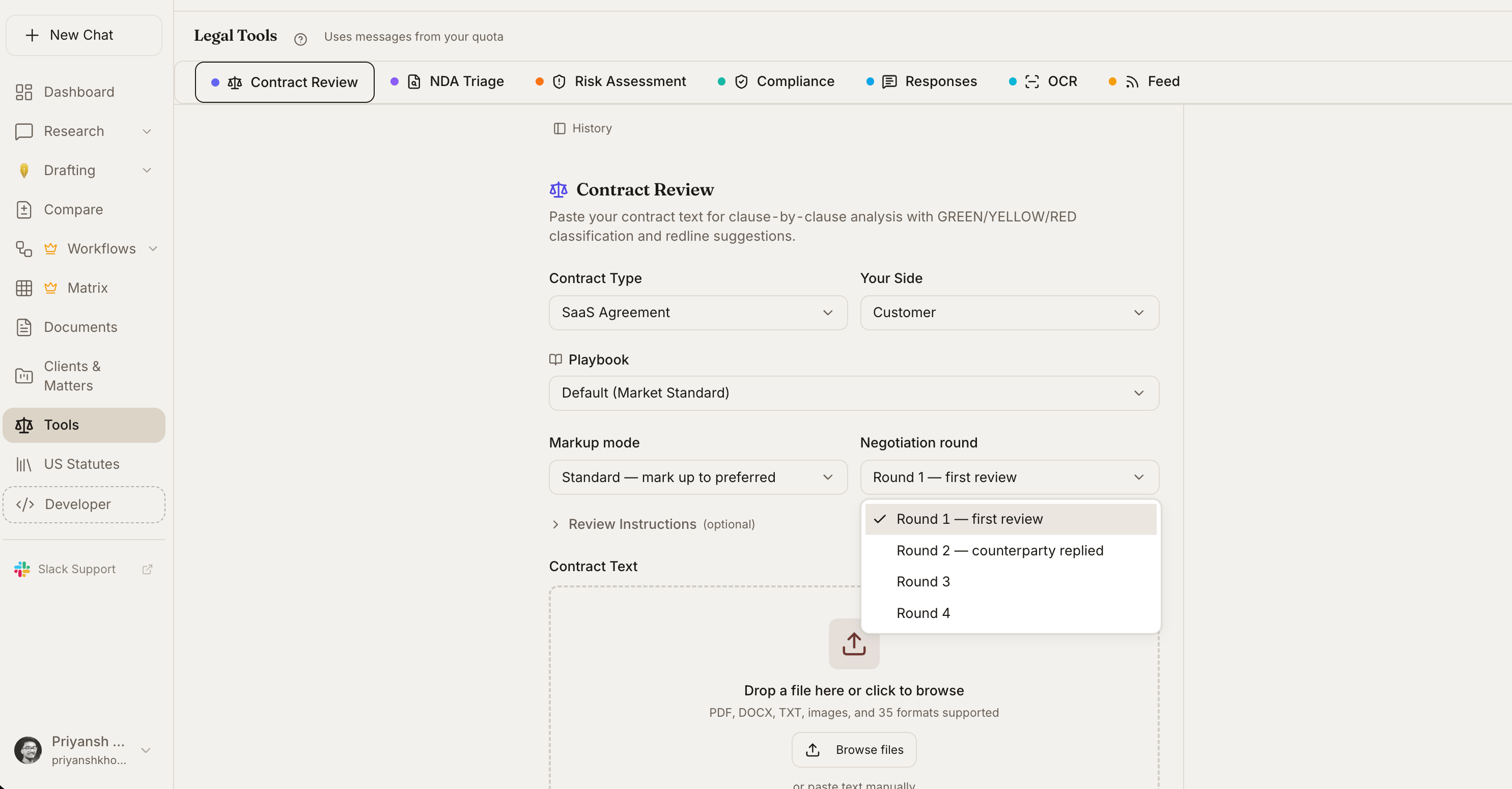
The Responses tab in the Legal Tools hub
Categories
How To Use It
1
Open Canned Responses
Launch the tool from the tools menu.
2
Pick the category
Choose the matching category (DSR, hold notice, subpoena, etc.) so the draft uses the right framework.
3
Paste the incoming communication
Or describe the situation in a sentence or two if you do not have a source email.
4
Pick the tone
Formal, professional, friendly, or empathetic. Tone changes word choice and structure, not substance.
5
Review and edit the draft
Fill in any placeholders the tool could not infer, then send.
Ready-to-run prompt
Canned Responses - draft a routine but defensible response in the right tone with a follow-up checklist.
Tone Options
The tone affects word choice, sentence structure, and the opening and closing - but the substantive content stays consistent.
Escalation Detection
The tool flags whether the incoming communication likely requires escalation:- None - Standard routine response
- Standard - Loop in a senior associate or counsel
- Urgent - Partner or General Counsel attention within 24 hours
- Critical - Immediate escalation; may involve breach response, regulatory enforcement, or litigation hold triggers
Follow-Up Actions
Each draft comes with a checklist of follow-up actions:- Calendar reminders for response deadlines
- Internal notifications to send (IT, HR, security)
- Documents to gather before responding
- Logs or tickets to open
Variables and Customization
Drafts use placeholders for the variables you need to fill in:[Client Name],[Matter Reference][Date of Request],[Response Deadline][Custodian List],[Document Categories]
Tips
Related
Skills
Save customized responses as reusable, firm-wide playbooks.
Compliance Check
Underlying framework requirements that drive response obligations.
Matters & Workspaces
Email-to-matter ingestion for incoming requests.
Risk Assessment
Roll critical inbound communications into a structured risk register.