

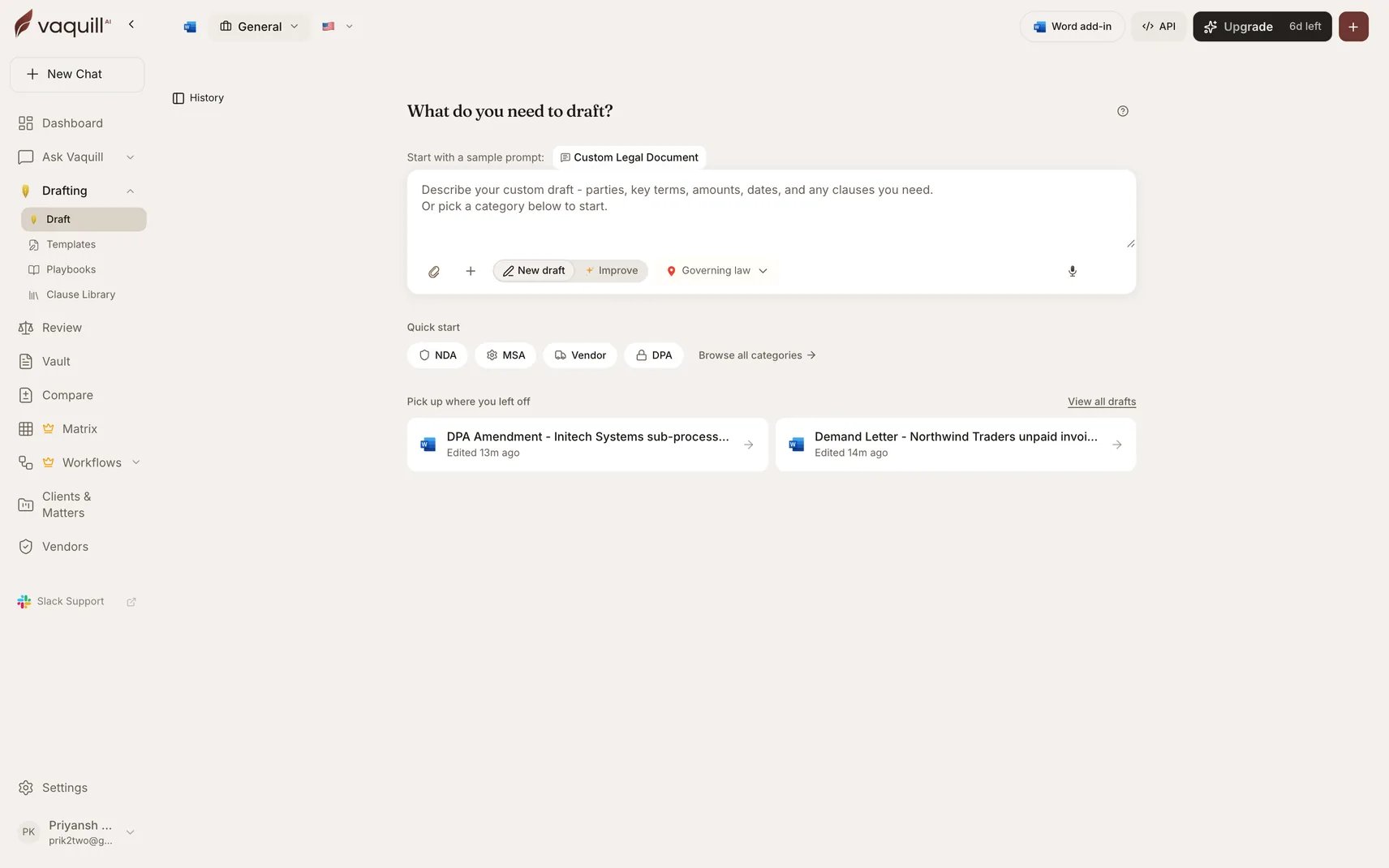
The drafting start screen: a plain-English prompt box, quick-start document types, and your saved drafts
Describe what you need
The prompt box is the front door. Describe your document in plain English and include the details that matter:- Parties and their roles
- Key terms, amounts, and dates
- Any specific clauses you need, or want left out
- Anything unusual about the deal that a generic form would miss
Choosing a document type
Quick start offers the four highest-volume types for your workspace as chips. In a general or in-house workspace those are NDA, MSA, Vendor, and DPA. In the Landlord and Tenant workspace they are 3-Day Notice to Pay, Lease / Rental, Estoppel, and Termination Notice. Browse all categories opens the full catalog, split into Contracts and Disputes & Notices tabs, with everything from Statement of Work (SOW), SAFE (Simple Agreement for Future Equity), and Service Level Agreement (SLA) through Motion for Summary Judgment, Cease & Desist Letter, and Appellate Brief. A Custom Draft (describe anything) tile always sits at the bottom for documents that do not fit a named type. You do not have to pick one at all. Start typing and the document type is detected from your description, shown as Detected: with the option to override it. Below the prompt box, Start with a sample prompt offers fully written briefs for the selected type, with the blanks pre-selected so you can tab through them. If you have saved document templates, matching ones appear as Your templates for this document type.Governing law and forum
Drafting is jurisdiction-aware, and for US documents the governing-law state is required before you can generate. Pick a state, or Federal / multi-state for federal-only or cross-state scope. The selection pins retrieval and citations: statutes, deadlines, dollar figures, and required notices are pulled for that state rather than averaged across the country. For litigation documents, a Court forum option sets Federal court (FRCP/FRE) or State court, with a field for the specific district or court. That drives which procedural rules the draft is written against and how the caption is formed. The More options menu on the composer also carries:What happens during generation
Generation is not one prompt. The progress panel shows each stage as it runs, and you can close the tab and come back.1
Understanding your requirements
Sets up the right document structure for the type you asked for.
2
Looking up applicable laws
Retrieves the statutes, regulations, and case law that actually govern the document, scoped to your governing-law state. Attached reference documents are read in at this point.
3
Drafting each section
Sections are written in parallel, each one given the canonical list of its sibling sections so it cannot cross-reference an article that does not exist.
4
Verifying every cited authority
Case names, statute sections, constitutional references, and dates are checked against authoritative sources. Anything that comes back fabricated or mismatched sends that section back for a targeted rewrite with the correct citation supplied.
5
Senior-partner review
A final read-through of the whole draft for role drift, internal contradictions, forum-language drift, and anything that survived the citation pass.
Guardrails, and what gets flagged
Two of those stages fix problems silently before you see the draft. The rest surface in the editor, because they need your judgment.Quality badge
Quality badge
A pill in the editor header reading Fact-checked, Partner-reviewed, or N citations verified. Hovering it tells you how many cited authorities were confirmed, how many self-correction passes ran, and how many sections were rewritten during quality review before the draft reached you.
Sources panel
Sources panel
Lists every act, case, and citation in the draft, grouped into statutes and cases, each marked verified, could not verify, or not checked. It also lists open issues by domain: outdated statutes, unverified citations, missing pinpoint cites, unfilled placeholders, inconsistent dates, sections that ran long, and low-confidence sections.
Compliance review
Compliance review
For document types that run an adversarial red-team pass, this panel separates Residual critical defects (must fix), Residual concerns (decide), Manual review (confirm the supporting documentation exists), and Fixed in v2 (defects the automatic revision pass already closed).
Playbook compliance
Playbook compliance
A banner scoring each section against your playbook as preferred, fallback, or needs attention, with a risk band from low risk through partner sign-off recommended. You can insert the playbook’s preferred language, or a numbered fallback, directly as a tracked change.
Refusal
Refusal
If the request cannot produce a valid legal document, drafting stops and says so, with the applicable law and suggested next steps, rather than generating something unenforceable.
New draft vs Improve
The toggle above the prompt box switches between the two modes.- New draft generates a fresh document from your description.
- Improve takes a document you already have and analyzes it first.
Importing an existing document
You can also bring a document straight into the editor as an editable draft, from PDF, Word, plain text, Markdown, RTF, or an image of a page. Word imports keep more than the text. Comments become real comment threads, tracked insertions and deletions become live redlines with the original author’s name and color, and hyperlinks survive. A banner tells you what was preserved, for example “We kept 8 comments, 23 insertions, 4 deletions from the original document.” Headers and footers are recorded but not placed in the editor body.The editor
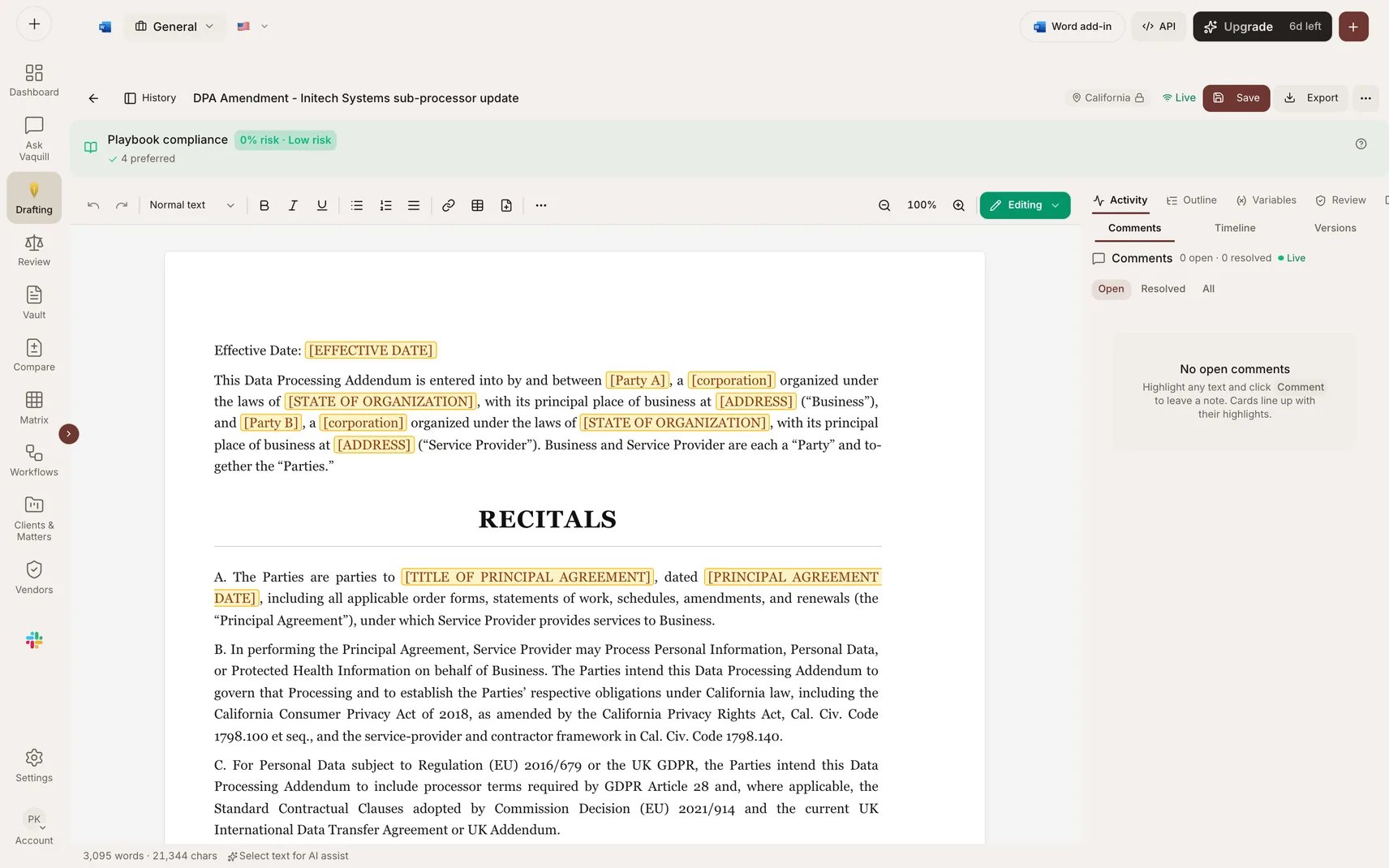
The draft editor: track changes, comments, and version history
Track changes
The mode control at the right of the toolbar sets how your edits are recorded.
The Suggestions panel lists everything pending, filterable to All or Mine, with a live risk badge.
Per suggestion you can accept, reject, or Modify, which is a counter-offer: edit the proposed wording before accepting it.
Accept all and reject all require a second click to confirm.
AI-generated redlines, including those pushed in from contract review, are attributed to the reviewer rather than to you, so a human decision is always distinguishable from a machine suggestion.
The Timeline tab keeps the audit trail.
Every insertion, deletion, replacement, and formatting change is logged with its status, and stays logged after it is resolved, because the in-document mark disappears on accept or reject but the record should not.
A resolved change can be un-resolved, which brings it back as a live, re-decidable suggestion.
Comments and review
Drafts carry threaded comments anchored to a passage, so review happens in the draft.- Anchor a comment to a selection and start a thread
- Reply within the thread, including nested replies
- @-mention a teammate to email them a link that opens directly on that thread
- Resolve a thread once it is dealt with, or reopen it later
- Filter to open, resolved, or all
Version history
Versions are snapshots you take deliberately. Auto-save keeps your work safe continuously but does not create a version, so the history stays a list of meaningful checkpoints rather than a keystroke log. Save explicitly, with an optional change summary, to snapshot the draft. The Versions tab lists them newest first, and Restore replaces the current draft with that version while recording the restore itself as a new change. If two people have the same draft open and the underlying version has moved on, the save is refused rather than silently overwriting a colleague’s work.Variables and bulk merge
The Variables panel finds the fill-in points in your draft and lets you complete them in a form instead of hunting through the body.[Square brackets]are one-off placeholders for this document{Curly braces}are merge fields you intend to bulk-fill
Approvals
Where a playbook attaches a sign-off requirement to a clause, sections that land on a fallback or needs-attention position become pending approval items in the Approval workflow panel. Each item names the clause type, the sections involved, the escalation triggers that fired, and the required level: Manager sign-off, Partner sign-off, or General Counsel sign-off. Decisions are Approved, Rejected, or Changes requested, each recorded with a rationale in a decision audit trail. A lower-authority decision does not satisfy a higher gate.Drafts, folders, and trash
Every draft is saved automatically and listed in the Drafts panel. Search across drafts by content, and filter by status (Draft, Review, Final, Archived), by source (AI-generated, Uploaded, Imported), and by date. Folders are shared with chats, so a project folder can hold both the conversation and the contracts. Select several drafts at once to move or duplicate them together. The start screen also surfaces Pick up where you left off with your most recently edited drafts and when each was last touched. Deleted drafts go to Trash for 30 days before they are removed permanently, and can be restored from there.Sharing and co-editing
Share a draft by public link or by email. A public link is a read-only snapshot: anyone with the link can view it without signing in, and later edits are not reflected. Email sharing sends the title and a link to named recipients. Within your organization, drafts are visible to teammates, and the editor shows who else is present with live avatars marking who is viewing and who is typing, plus a connection badge.Exporting
Export from the editor header.
If the export still contains unfilled placeholders, you are warned before you send it to a counterparty.
Save to matter files the finished draft into a matter as a document, where it becomes searchable alongside the rest of the case file.
Limits
- Full draft generation and draft analysis each consume 3 message credits; a clause rewrite or explanation consumes 1.
- Plans carry a monthly cap on full draft generations. Failed and cancelled generations do not count against it. See Plans and limits.
- Uploads are capped at 50 MB per file, with up to five reference documents attached to a generation.
- Bulk merge handles up to 200 rows per job.
Limitations
- Citations are checked, not guaranteed. Anything the verifier could not confirm is marked unverified in the Sources panel rather than removed. Treat unverified as unchecked.
- The governing-law state is locked after the first generation. Adapting a finished draft to another state means starting a new one.
- Coverage varies by state. Where the statutory corpus is thin for a state, the governing-law pill warns you, and drafts for that state will carry less statutory authority.
- Your saved clauses are not automatically used. Clause library wording reaches a draft either by being referenced from a playbook or by being inserted by hand in the editor.
- Imports are lossy for some formats. Scanned PDFs and images go through OCR and come back as text without structure. Headers and footers from Word are recorded but not placed in the editor body.
- PDF export flattens review markup. Tracked changes and comments only survive in the Word tracked-changes export.
- Duplicating a draft does not carry comment threads. The copy starts with a clean review state.
- Anti-hallucination findings are not itemized to you. You see the corrected draft, the quality badge, and the residual flags, not the full internal fact-check log.
Related
Document Templates
Turn a Word document you already use into a reusable skeleton with detected variables.
Clause Library
Save vetted clause wording and insert it into any draft.
Playbooks
Encode preferred clauses and fallback positions, then draft and score against them.
Contract Review
Run a clause-level review with severity flags, then push the redlines into the editor.
Compare Documents
Redline a draft against a counterparty’s version side by side.
Matters & Workspaces
File a finished draft into the matter it belongs to.
Demand Letter Drafter
A guided workflow for demand letters, end to end.
US Motion Drafter
A guided workflow for federal and state motions.