

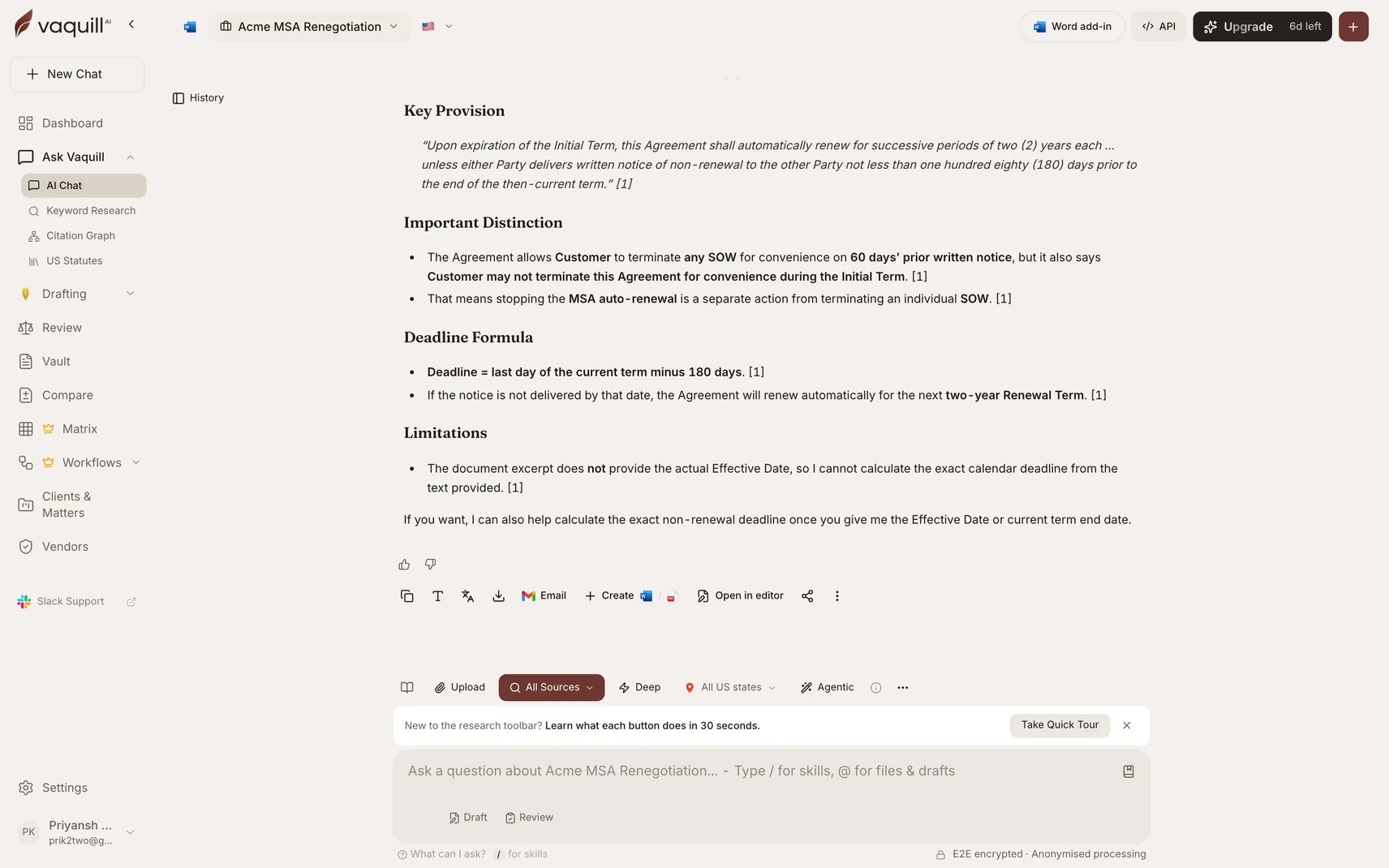
A cited answer in chat, scoped to a matter
The four research sources
Chat draws on up to four sources, each toggled independently from the research selector.Matter documents
Your uploaded documents. The default for questions about your own contracts, pleadings, and correspondence.
Legal database
Vaquill AI’s corpus of statutes, regulations, and case law.
Web search
Live web search for current developments not yet in the corpus.
Deep research
A comprehensive multi-source pass taking 30 to 120 seconds. Answers a hard question properly rather than quickly.
Scoping a conversation
Beyond the toggles, several things narrow what a question looks at:
Pinning a document is the single most effective way to sharpen an answer. “What does the indemnity say?” across a whole matter is a search; the same question with the agreement pinned is a read.
Agent mode
Agent mode lets the assistant pick its own tools and iterate, instead of retrieving once and answering. Use it when the right next step depends on what the previous one found. See Agent Mode.Citations
Every answer carries citations you can click to open the source passage. Answers also run through claim-level verification against the cited sources before reaching you, so a fabricated authority is caught rather than shipped. See Answer Verification and Citations. If an answer has no citation, treat it as unsupported. That is the signal, not a formatting quirk.Steering an answer
Skills
Skills
Run a saved playbook with a slash command for a repeatable structured analysis. See Skills.
Prompt Library
Prompt Library
Insert a saved prompt, edit it, and send. See Prompt Library.
Legal Tools
Legal Tools
Activate a structured tool such as Contract Review or NDA Triage from the conversation bar. See Legal Tools.
Memories
Memories
Context the assistant carries between conversations, so you stop repeating your jurisdiction and your side. See Memories.
Handoffs
When a question is better served by another surface, chat offers a handoff chip rather than doing a worse job inline: comparing two versions, building a matrix, drafting a document, or running a redline. Accepting one carries your context across.Follow-ups and threading
Follow-up questions inherit the conversation’s scope, so you can ask “and what about termination?” without restating the matter. To branch a side discussion off one passage without derailing the main thread, use Inline Threading.Sharing
A conversation can be shared with colleagues or via a link. See Conversation Sharing.Limitations
- Answers are grounded in what you let chat read. With every toggle off, it has nothing to cite.
- Deep research does not read your documents.
- Citations point to a source passage; they do not certify that the source is good law. Run a Citation Graph check before relying on authority in a filing.
- Chat is a research and drafting aid, not legal advice.
Related
Document Search
Searching your own documents in depth.
Agent Mode
Letting the assistant pick its own tools.
Deep Research
The comprehensive multi-source pass.
Workflows
When the job is repeatable and ends in a file.