

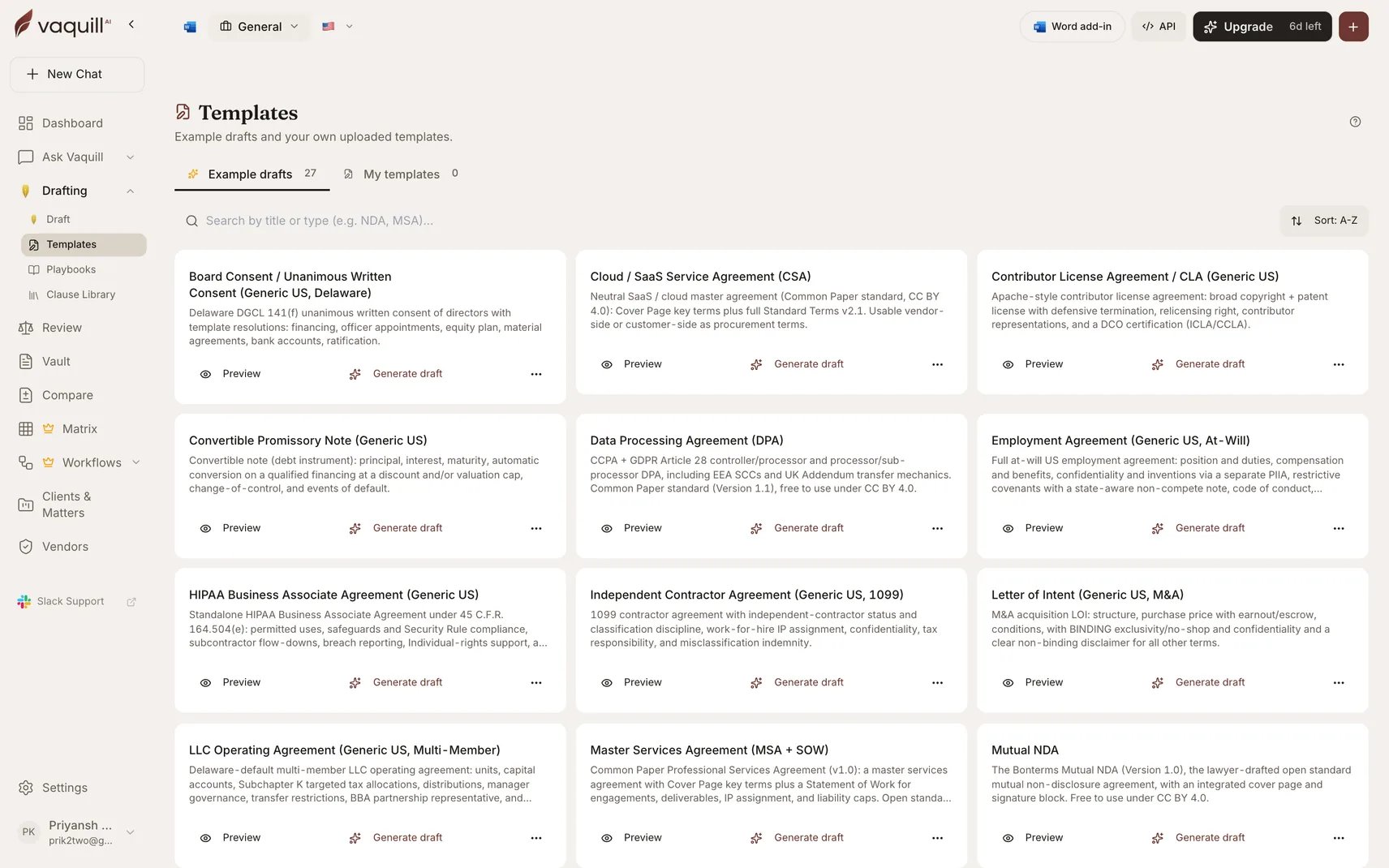
The Templates gallery
When to use it
- Your firm has a house-style NDA, engagement letter, or notice you send constantly
- You want generation grounded in your precedent rather than a generic model draft
- A colleague keeps reusing a document by “save as”, with all the risk that carries
Creating a template
1
Upload a DOCX
Upload the Word document you want to templatize. Vaquill AI parses the body and auto-detects variables, the placeholders that change per use: party names, dates, amounts, jurisdictions.
2
Check the detected variables
Review what it found. Add anything it missed, remove anything it over-detected. Body and variable set update atomically, so a template is never half-saved.
3
Generate
Run the template, fill the variables, and get a draft. Every past generation is listed against the template, so you can see what has been produced from it.
Organizing your library
Sharing
Templates can be org-shared, following the same active-membership rule drafts use: colleagues in your organization see and use them. You can also create a public share link. Anyone with the link can view the template, and a signed-in Vaquill AI user can clone it into their own library. Useful for a template you want to circulate beyond your organization.Templates versus the other reuse surfaces
Vaquill AI has several ways to reuse work, and they are easy to confuse:Limitations
- Variable detection is automatic but not infallible. Check the detected set before you rely on a template.
- Templates are DOCX-based. Complex Word features may not survive parsing exactly.
- Generation fills variables and drafts against the skeleton; it does not verify that the resulting document is legally appropriate for your matter.
Related
Drafting
The drafting surface templates generate into.
Clause Library
Clause-level reuse rather than whole documents.
Playbooks
Your negotiating positions, encoded.
File Formats
What Vaquill AI can ingest.